
Teams User Guide - Microphone, speaker & webcam setup
Microphone, speaker & webcam setup
Virtual background settings (Windows)
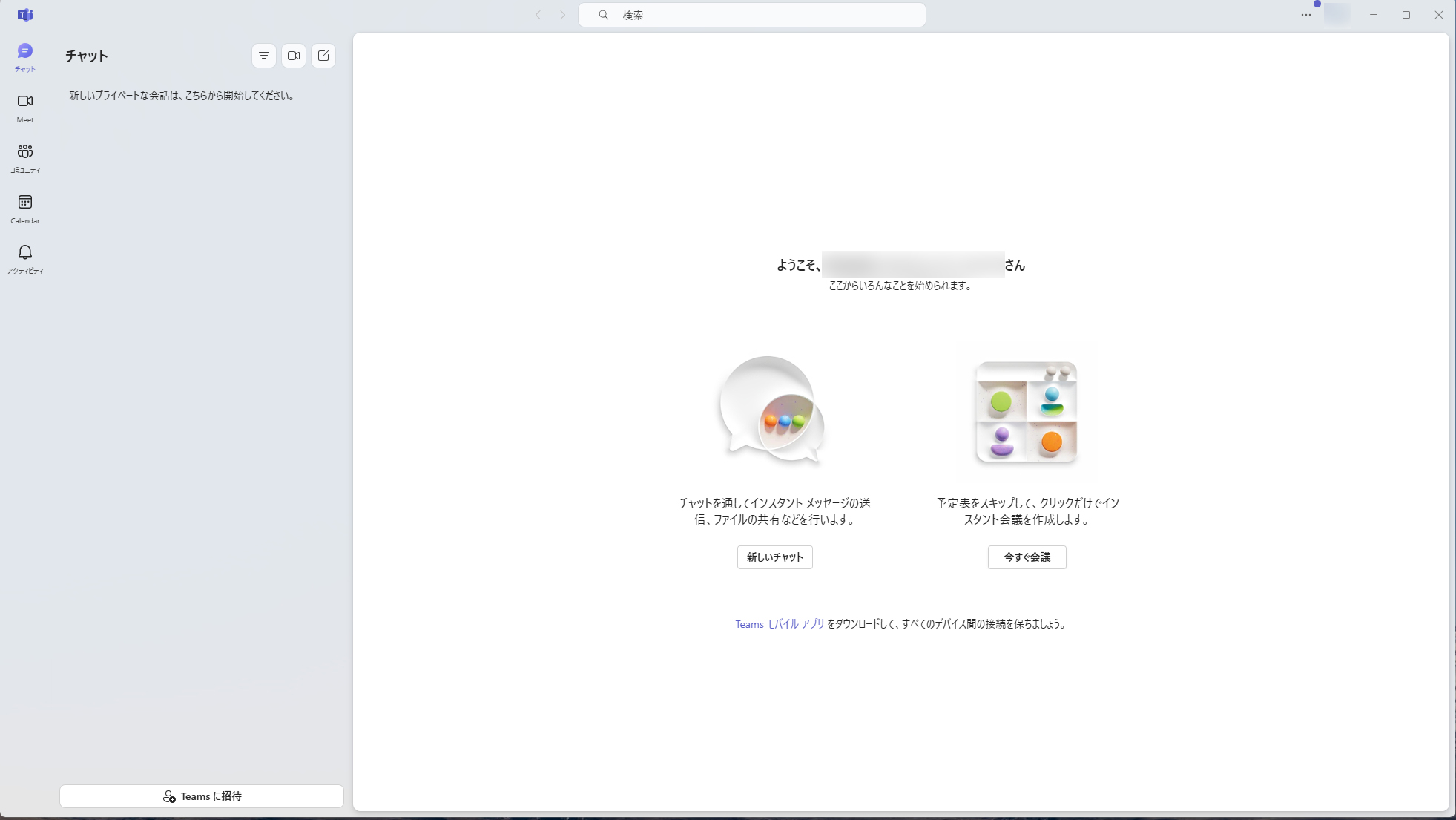
Click "..." next to your profile icon at the top right of Teams, then click "Settings".
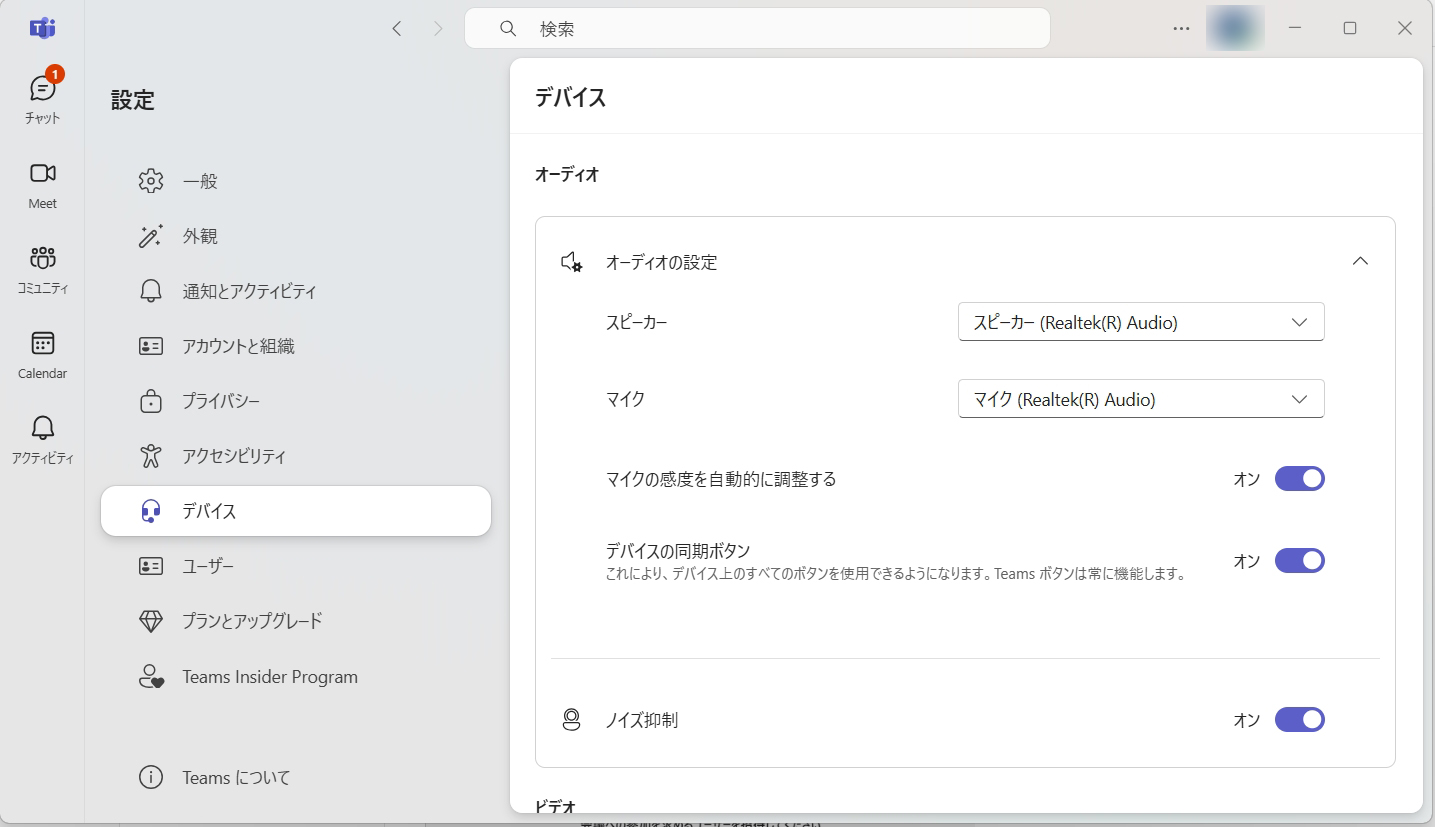
In the left menu, click "Devices."
The Devices panel opens on the right. Select your speaker and microphone there.
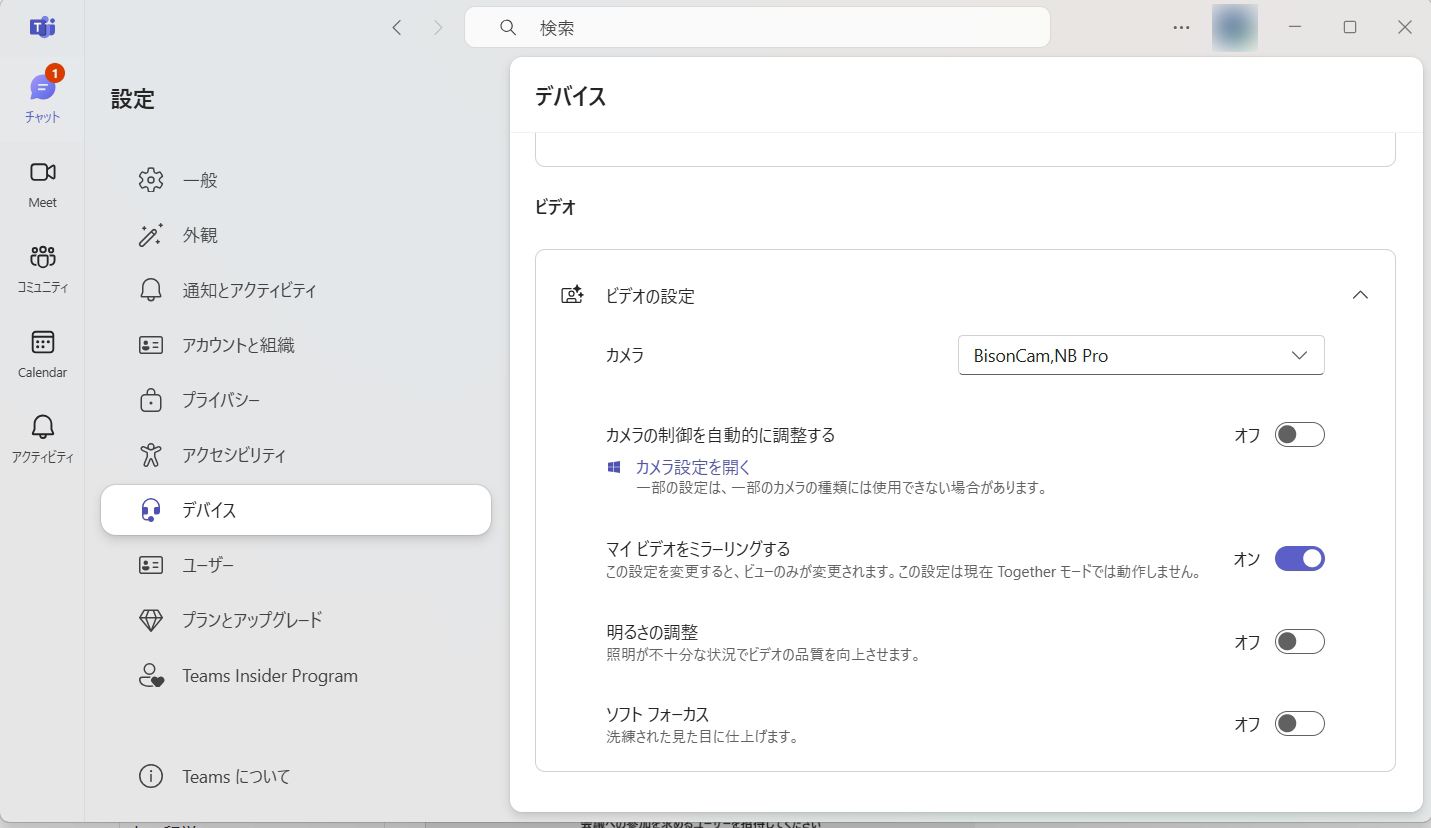
Under that, find the "Video" section and select your webcam.
* This covers microphone, speaker, and webcam settings only.
To test your microphone, speakers, or webcam, see "Test your devices" below.
