
Teams User Guide - Test Your Mic, Speakers & Webcam
Test Your Mic, Speakers & Webcam
Unlike Skype, Teams has no dedicated test-call feature (as of April 1, 2025).
You can still check your webcam and microphone in advance using the steps below.
Speakers cannot be tested here. Play audio on your computer to confirm sound, and verify the correct speakers are selected.
Test Your Webcam (Windows App)
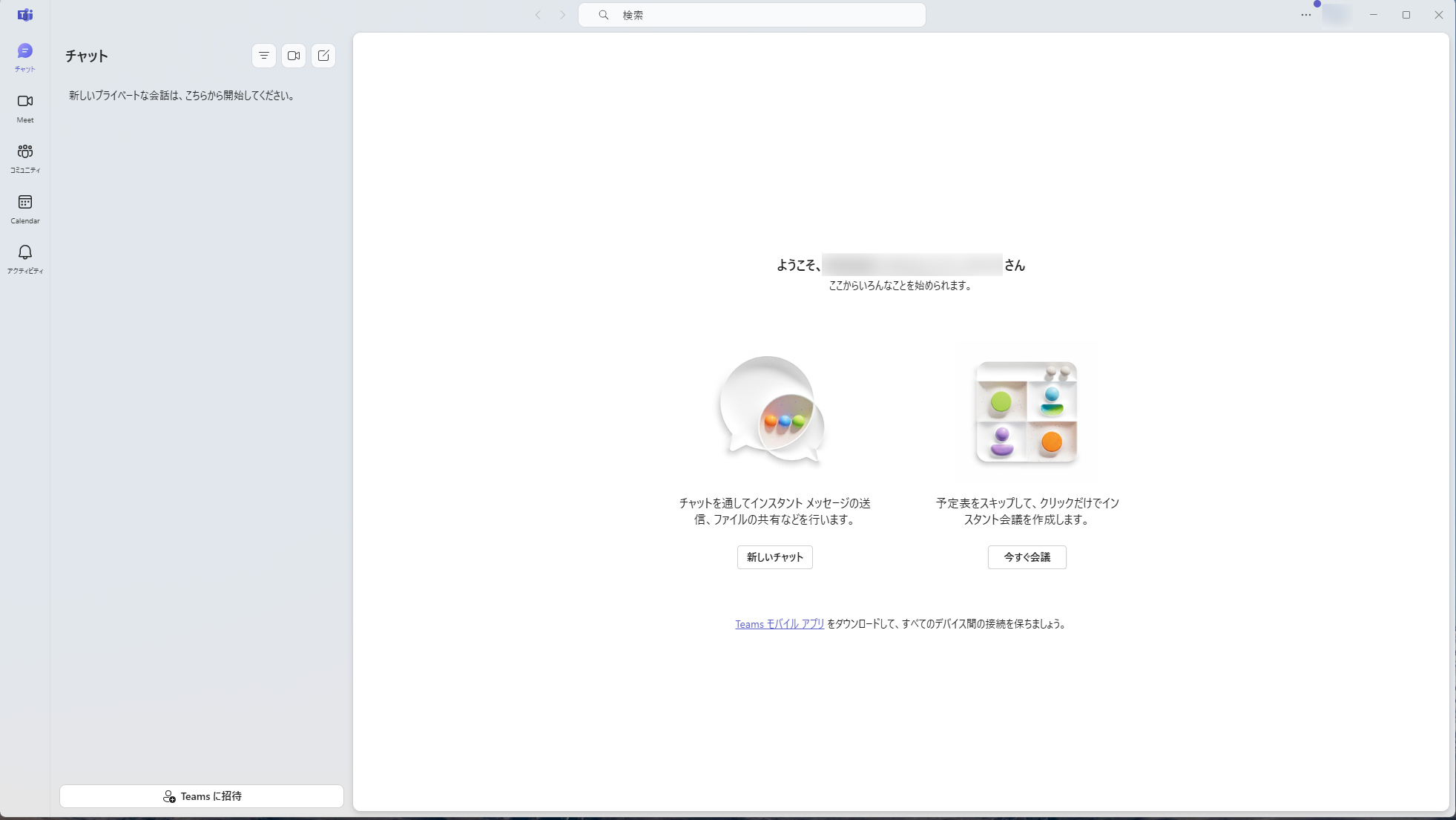
Click the "Chat" icon at the top left of Teams. (Skip if you are already on the Chat screen.)
Next to the large "Chat" heading, click the middle icon (video camera).
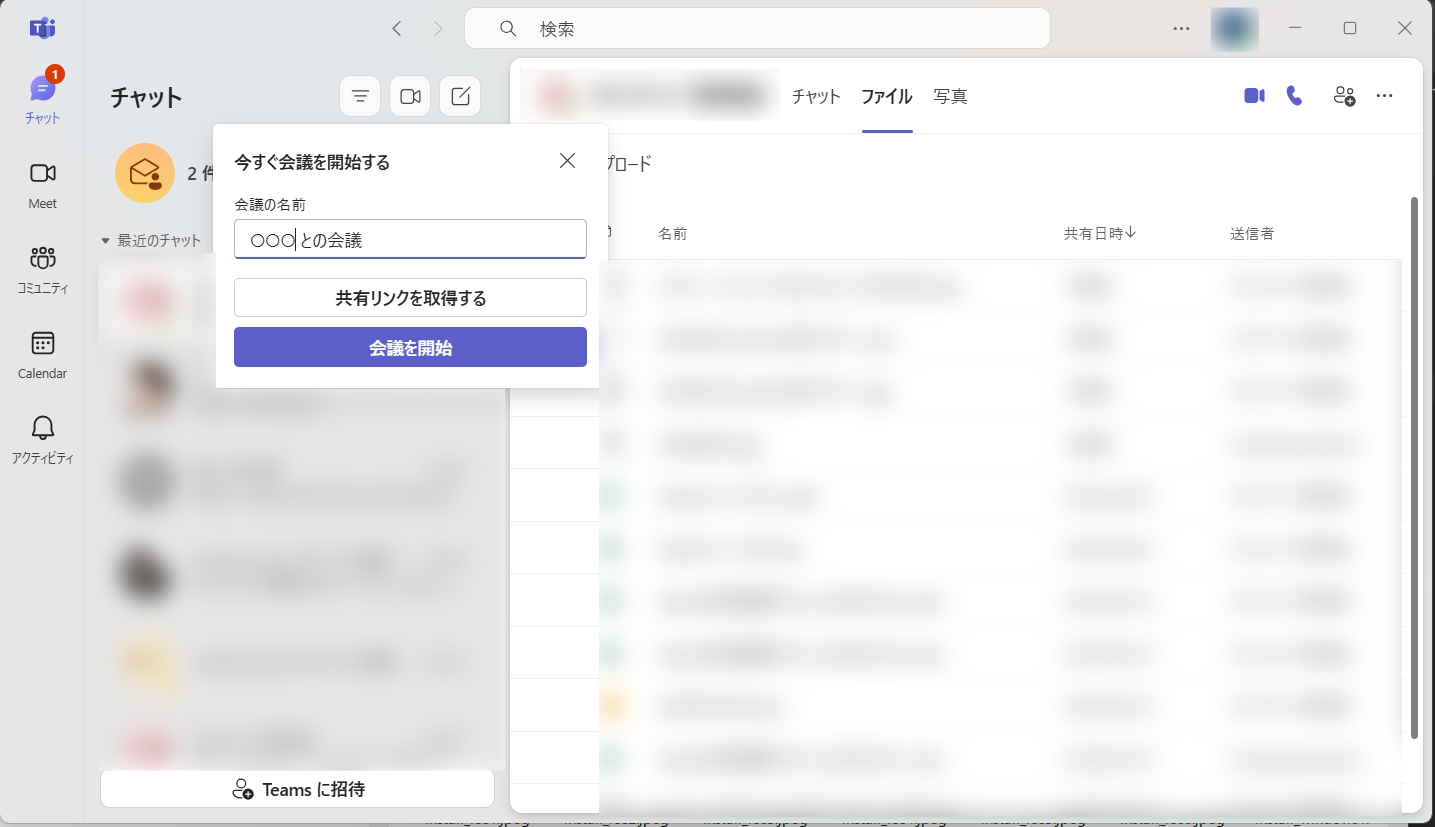
When the "Start a meeting now" screen appears, click "Start meeting".
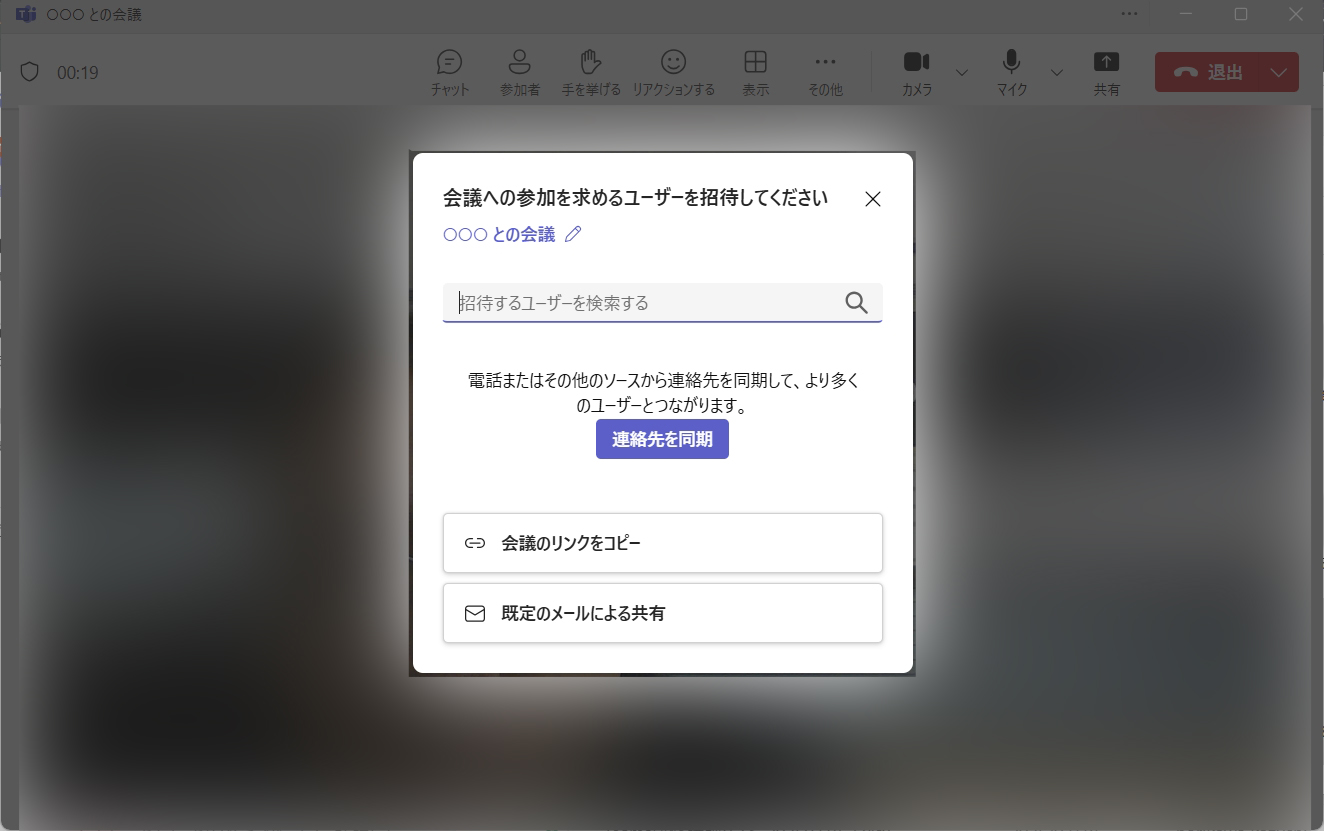
Close the "Invite people to join you" prompt by clicking X.
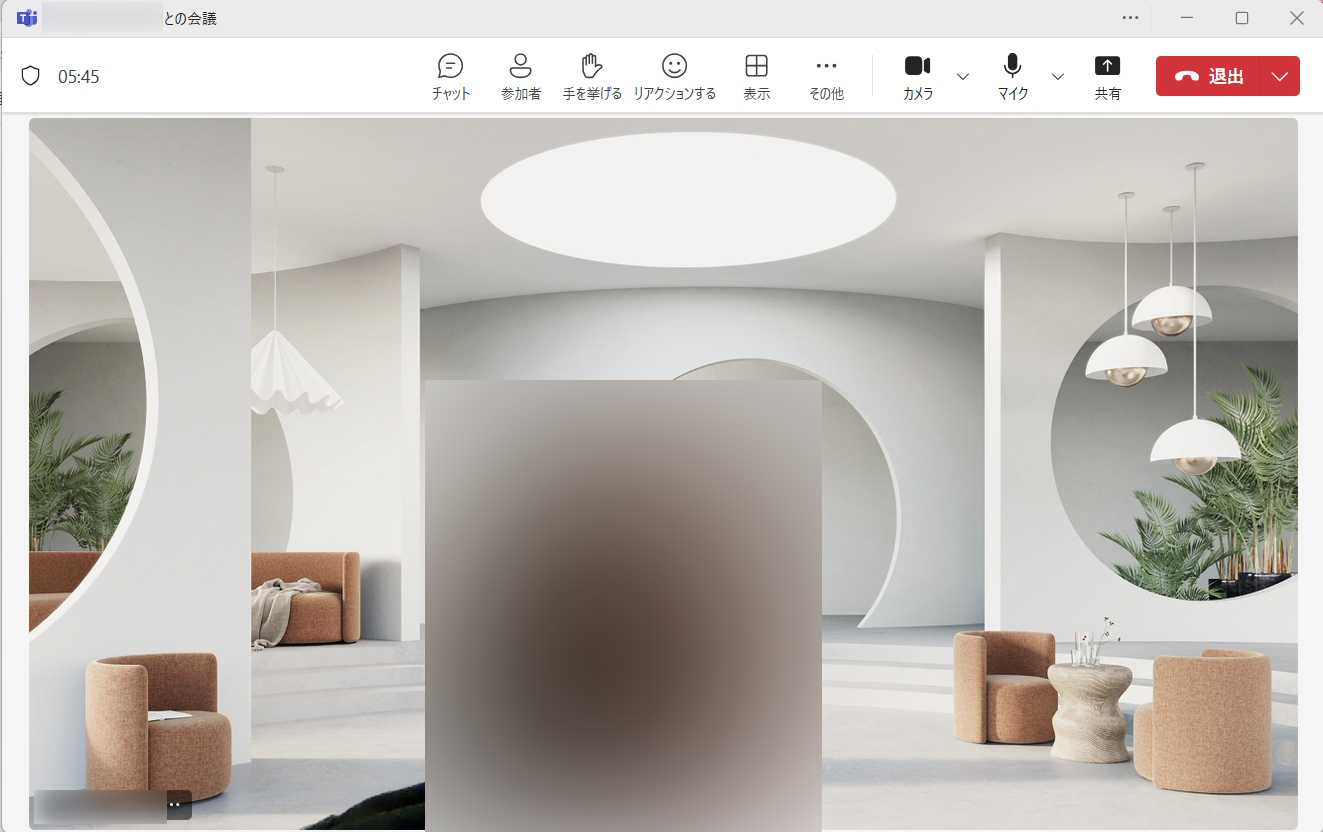
The meeting screen opens. If your video appears, your webcam is working.
If your video does not appear, click the downward arrow next to the camera icon at the top right.
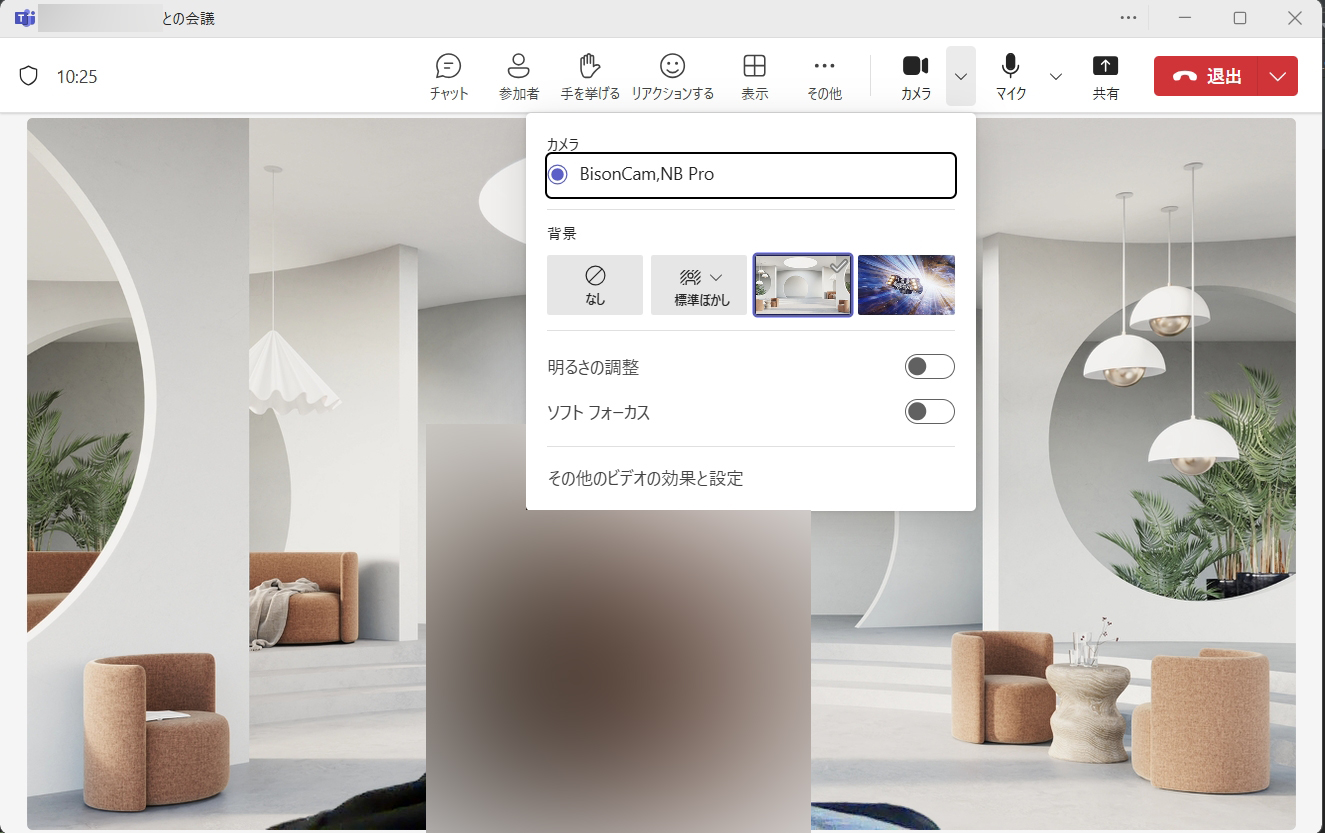
Click "More video effects and settings" at the bottom.
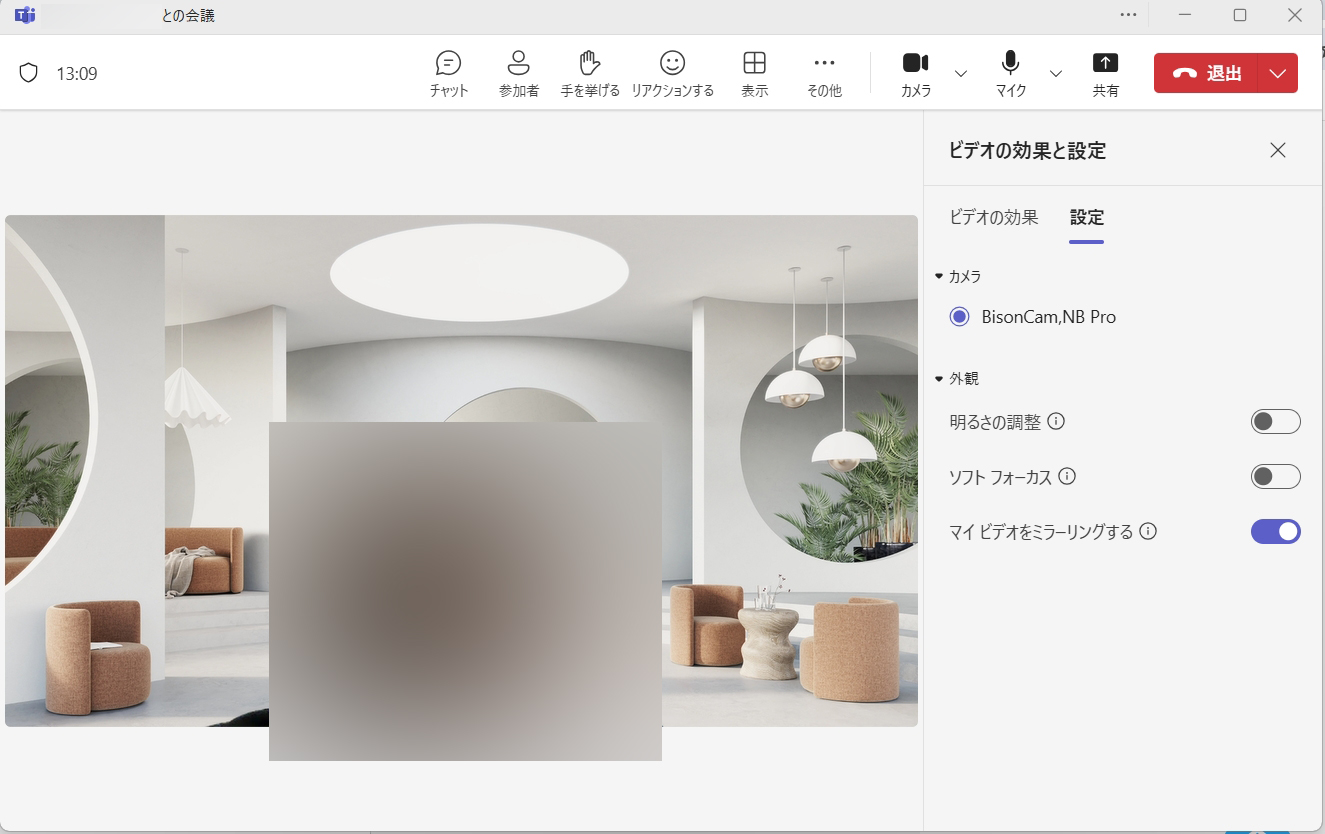
In the panel on the right, go to the "Settings" tab and select "Camera". If your video appears after selecting it, you are all set.
Test Your Webcam (Windows App)
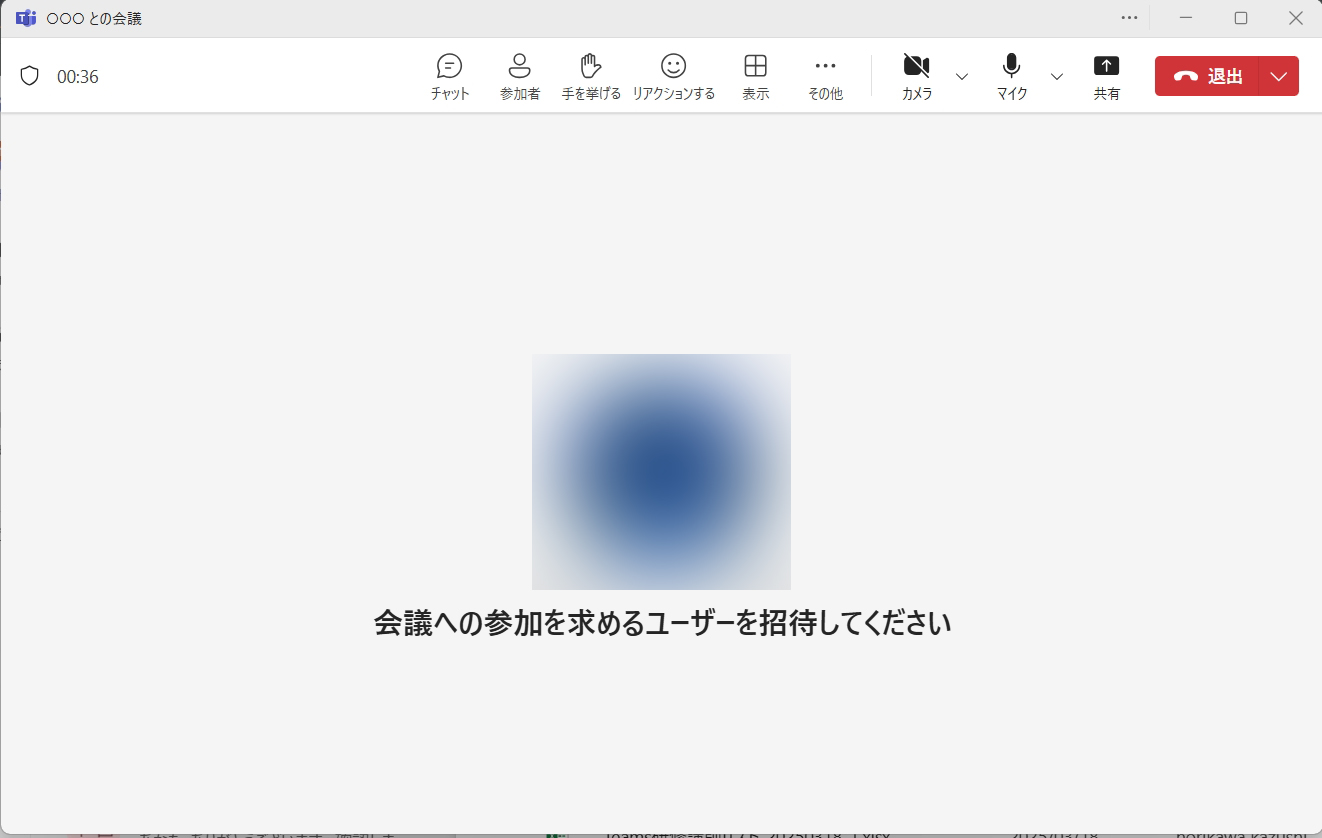
Click the downward arrow next to the microphone icon at the top right of Teams.
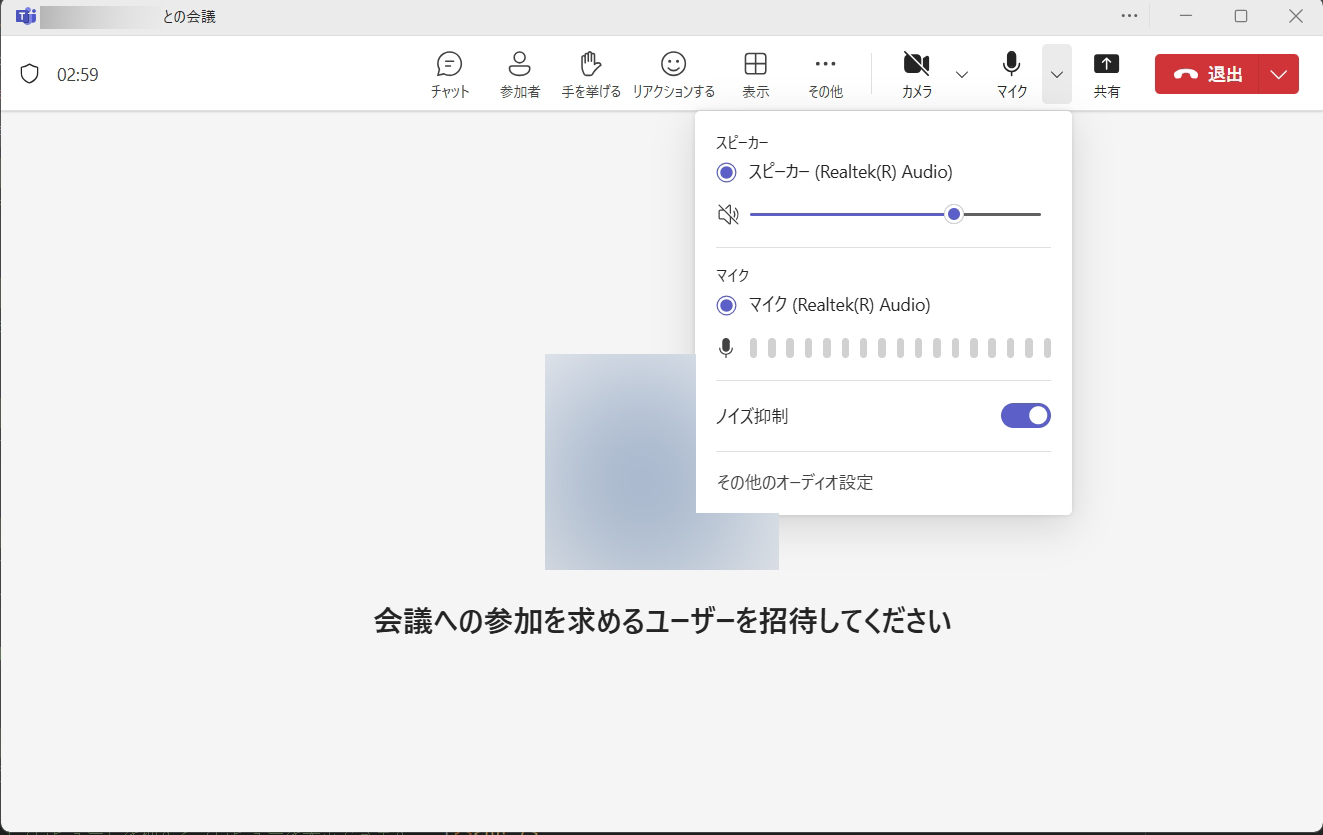
"Speaker" and "Microphone" are shown. Say something into your microphone. If the microphone responds, it is working correctly.
* Speakers cannot be tested here. Make sure the correct speakers are selected.
