
Teams User Guide - Virtual background setup
Virtual background setup
Virtual background settings (Windows)
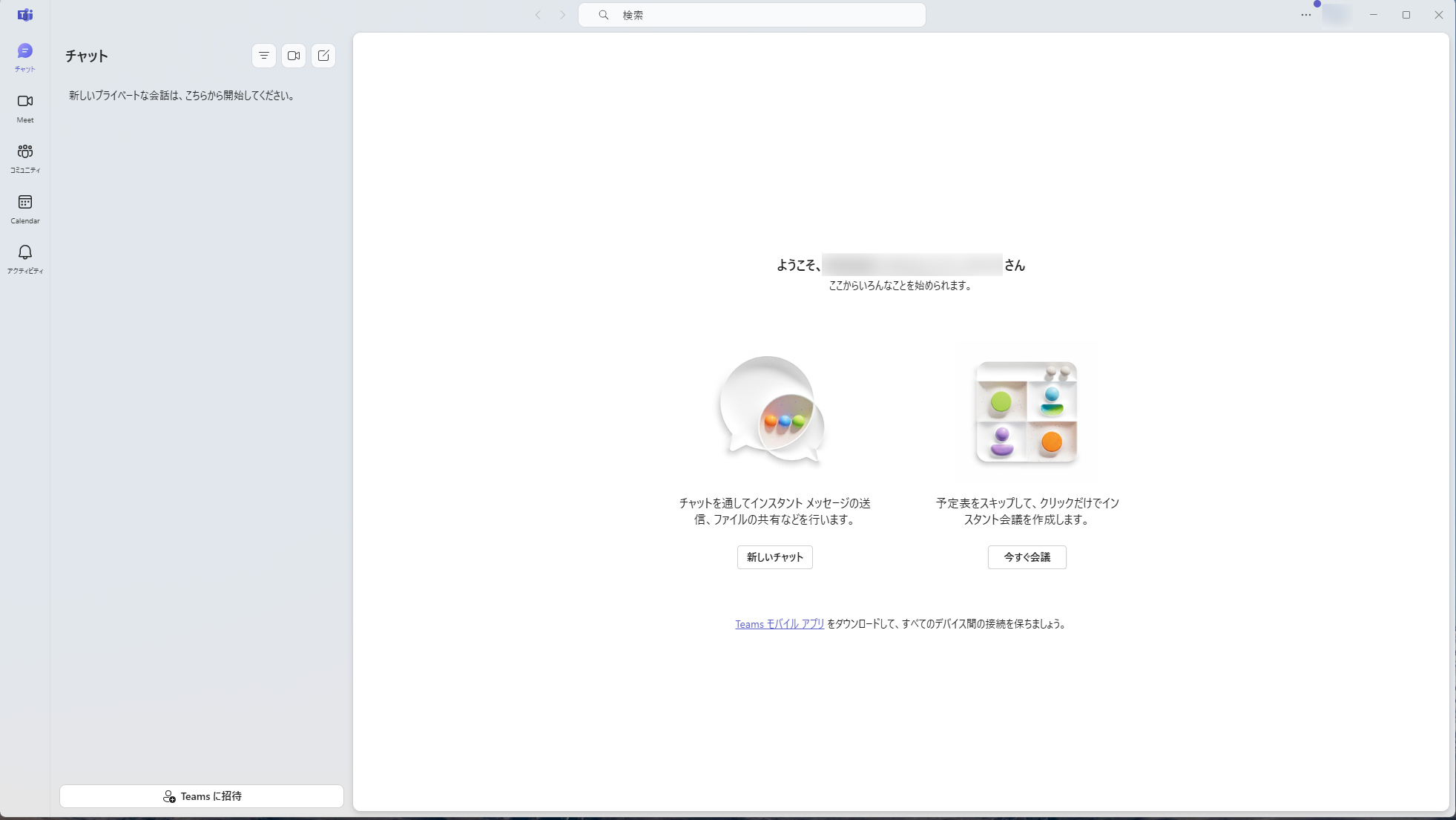
Click the "Chat" icon at the top left of Teams. (Skip if you are already on the Chat screen.)
Next to the large "Chat" heading, click the middle icon (video camera).
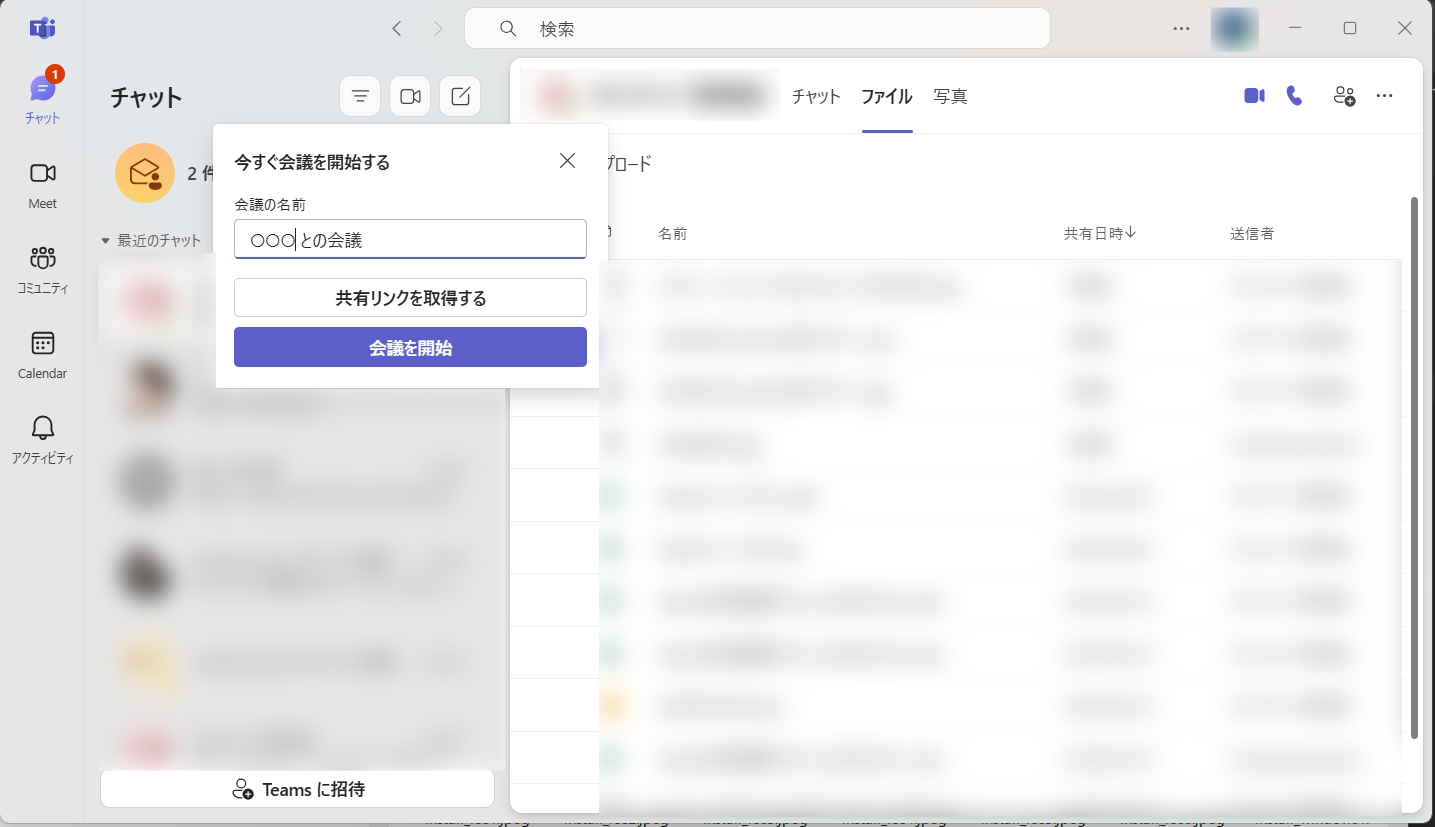
When the "Start a meeting now" screen appears, click "Start meeting".
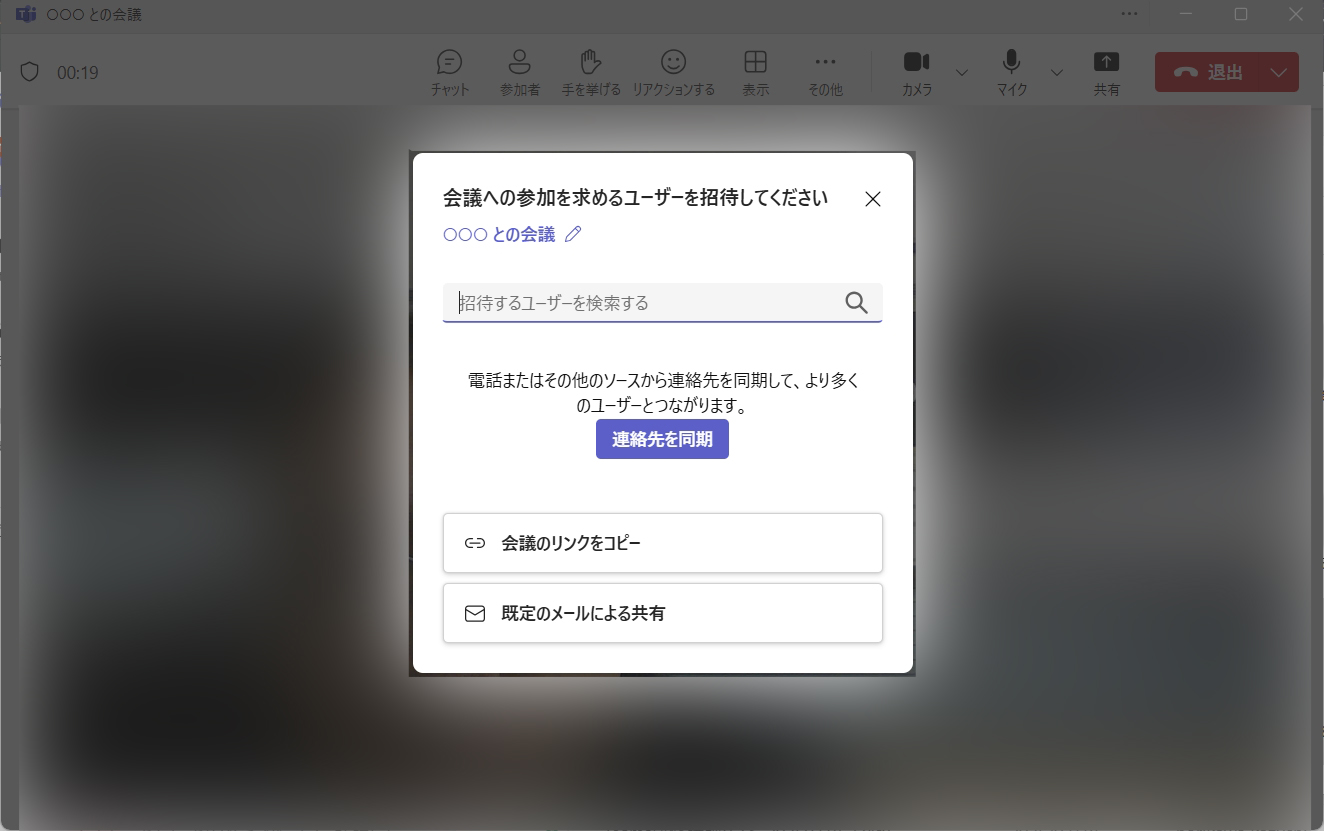
Close the "Invite people to join you" prompt by clicking X.
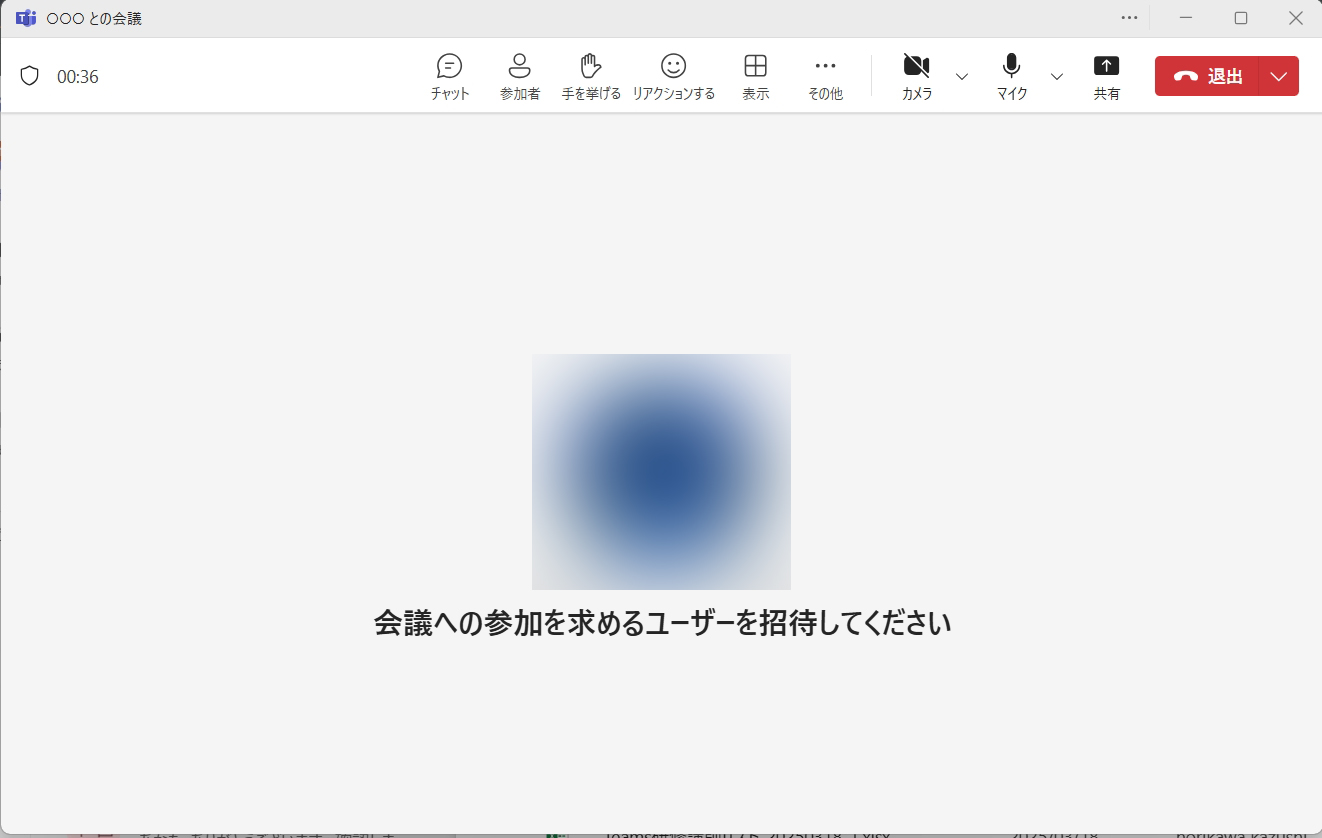
The meeting screen will open. Click the downward arrow next to the camera icon at the top right.
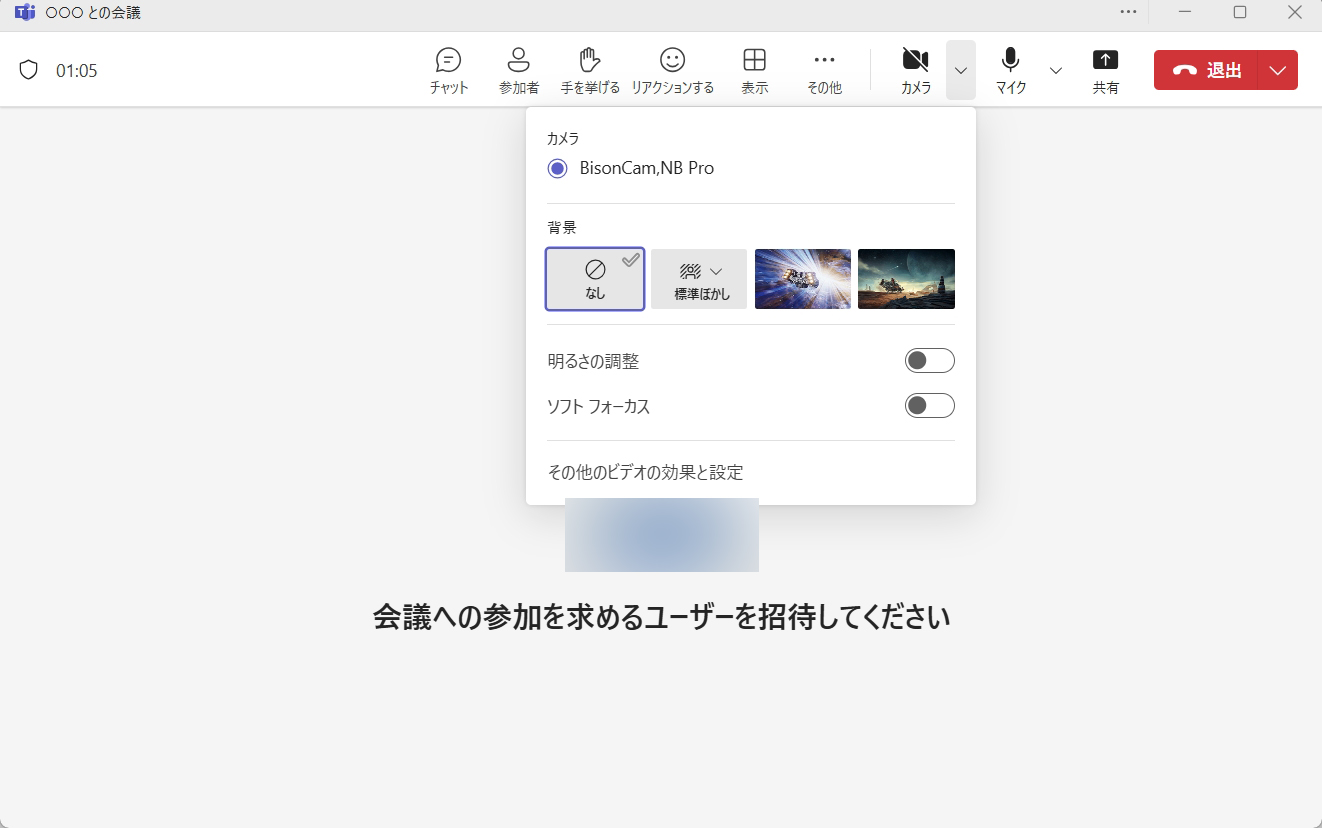
Click "More video effects and settings" at the bottom.
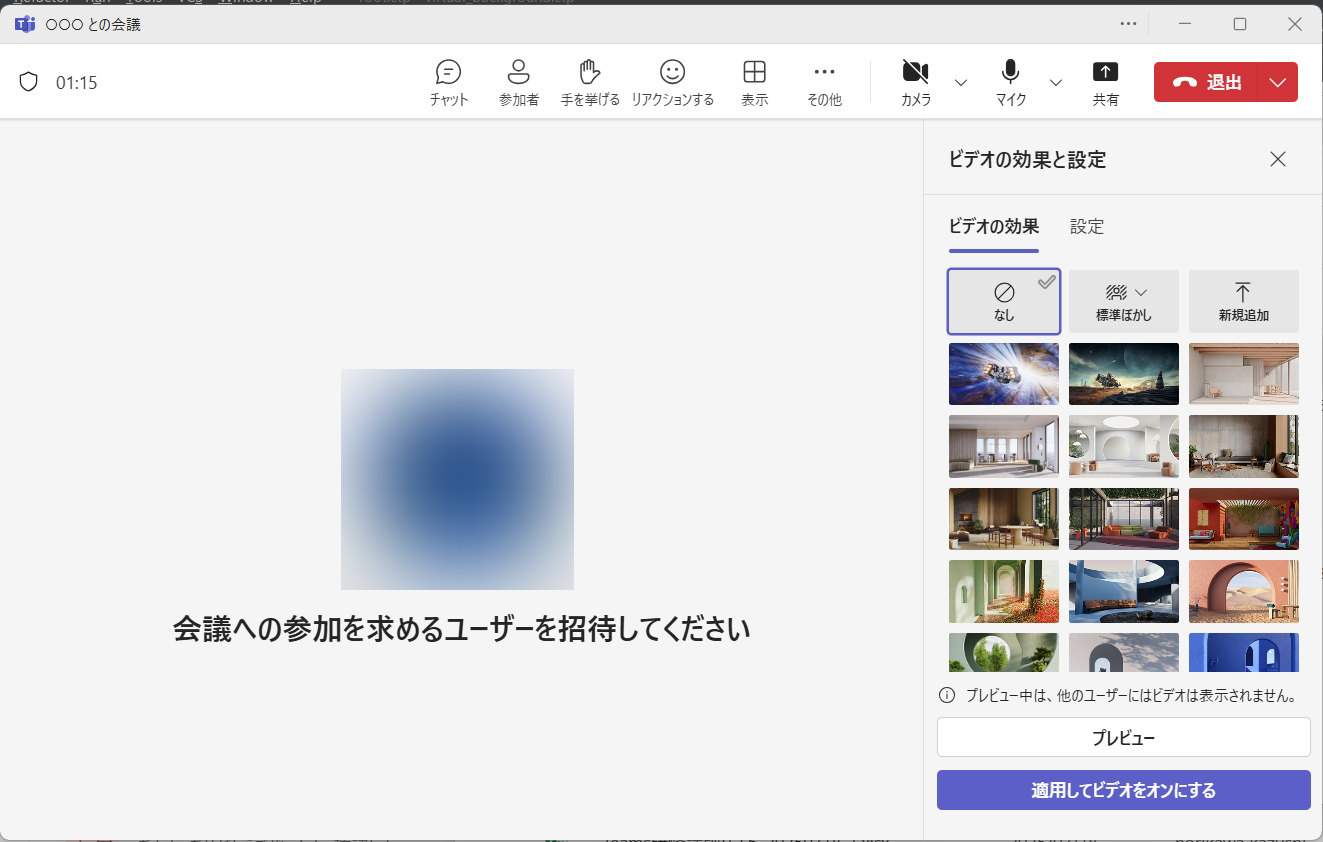
The "Video effects and settings" panel opens on the right. Choose a background and click "Apply and turn on video."
* Click "Preview" to preview your background.
* Use "Add new" at the top right to upload a custom background image.
