
VooV Meeting User Guide - How to Install the App and Register an Account
How to Install the App and Register an Account
Installing on Windows
1. Open the official VooV Meeting download page below and click the "Download" button.
Open the Download PageThis will open the official site voovmeeting.com
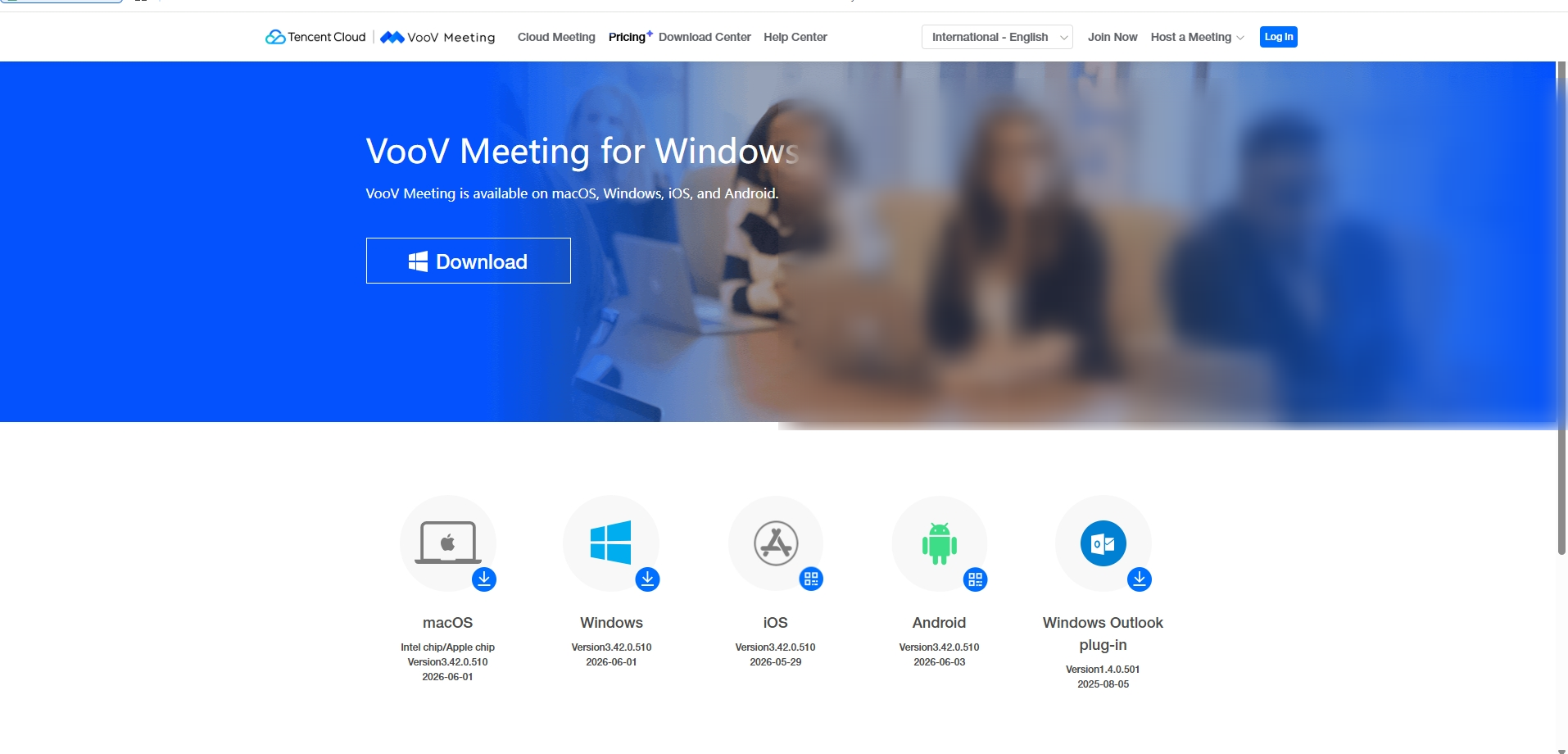
2. The download will start automatically. If it doesn't, click "Click here to Download" on the next screen.

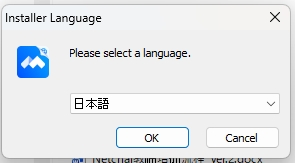
3. Double-click the installer file you downloaded. If a language selection screen appears, choose "Japanese" and click "OK."
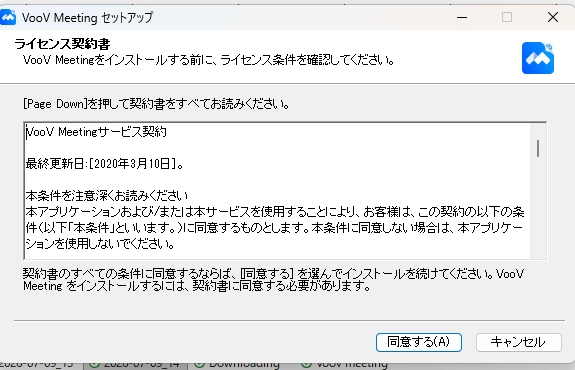
4. The license agreement will be displayed. Please review it and tap "Agree."
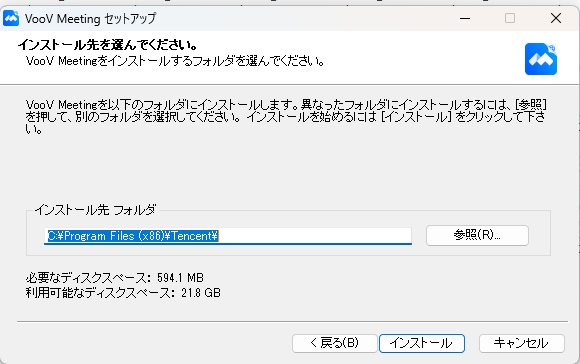
5. This screen lets you choose the install destination folder. Normally, just tap "Install" as is.
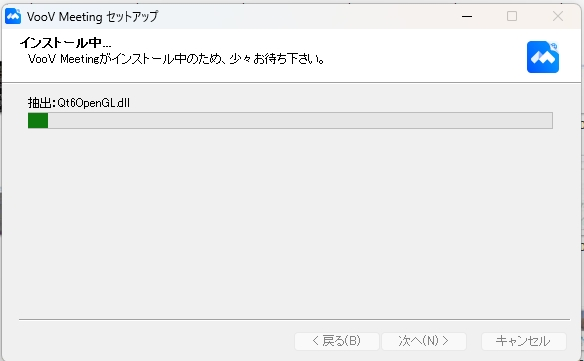
6. Installation will begin; please wait a moment until it finishes.
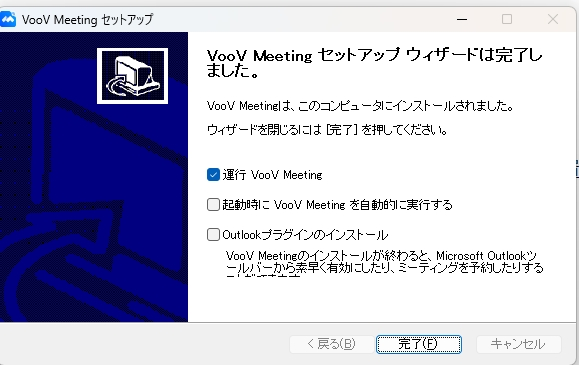
7. When "Setup Wizard Complete" is displayed, tap "Finish." VooV Meeting will launch.
8. If this is your first time using it, a login screen will appear; continue on to account registration. Once registration is complete, you'll see a home screen like the one below.

Click here for how to register an account
Installing on Mac
1. Open the official VooV Meeting download page below.
Open the Download PageThis will open the official site voovmeeting.com

2. On the page, select "macOS" to download. Choose "Apple chip" (M1/M2/M3, etc.) or "Intel chip" to match your Mac.
3. Open the downloaded file and follow the on-screen instructions to install it. Once installation is finished, continue on to account registration.
Click here for how to register an account
Installing on iPhone/iPad
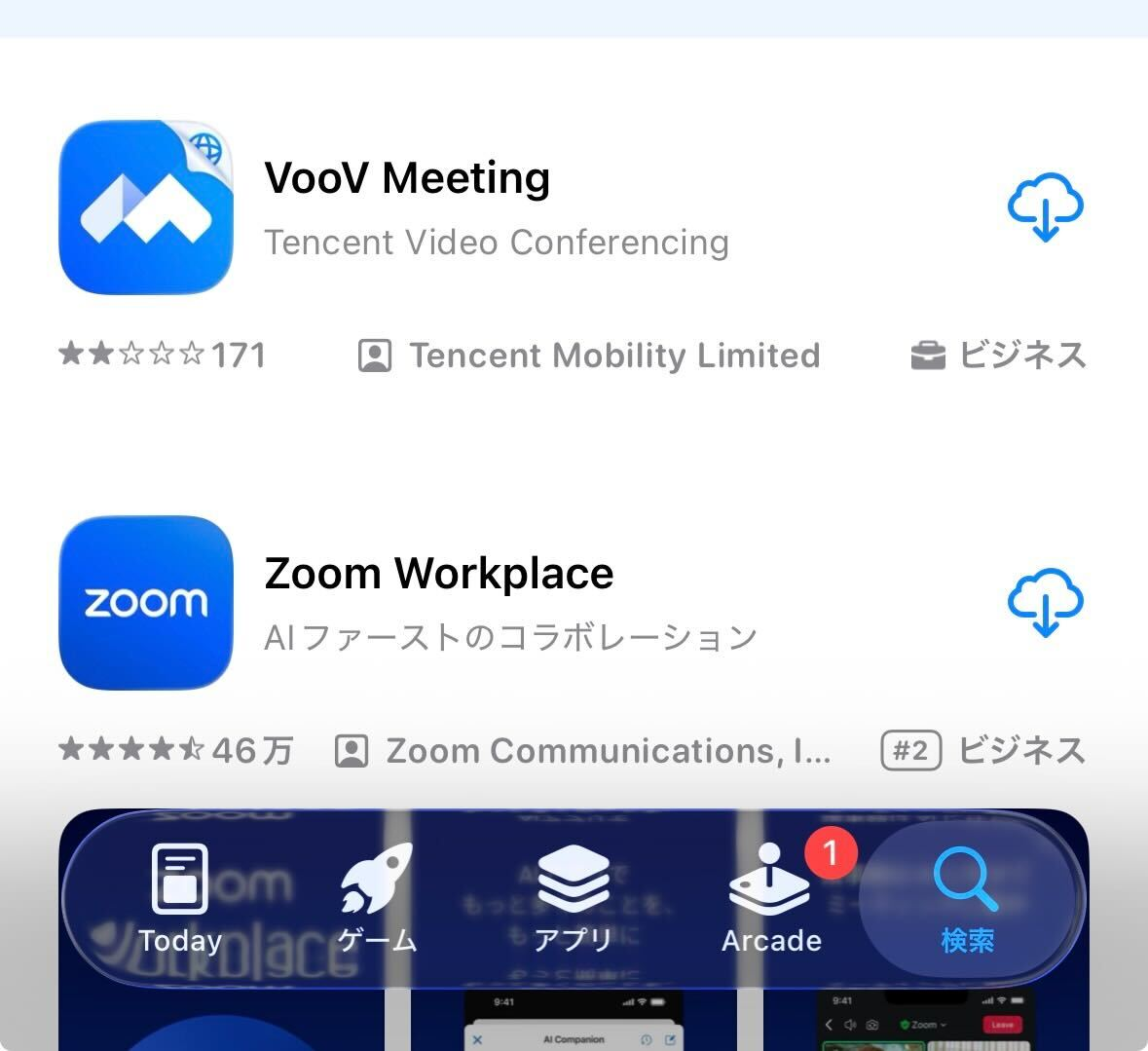
1. Open the App Store, search for "VooV Meeting," and install (Get) it.
Open the App StoreOpens the VooV Meeting page in the App Store
2. Once installation is finished, tap "Open" to launch the app, then continue on to account registration.
Click here for how to register an account
Installing on Android
1. Open the Google Play Store, search for "VooV Meeting," and install it.
Open Google PlayOpens the VooV Meeting page on Google Play
2. Once installation is finished, tap "Open" to launch the app, then continue on to account registration.
* If you're using a device such as a Chromebook where VooV Meeting can't be installed from Google Play, please select "NetChai Meeting" or "WeChat" as your lesson tool when booking.
How to Register an Account (Common Steps)
You can register your account the same way from either a computer or a smartphone. Registration uses your email address and a verification code sent to that email. (The screens shown are from a smartphone.)
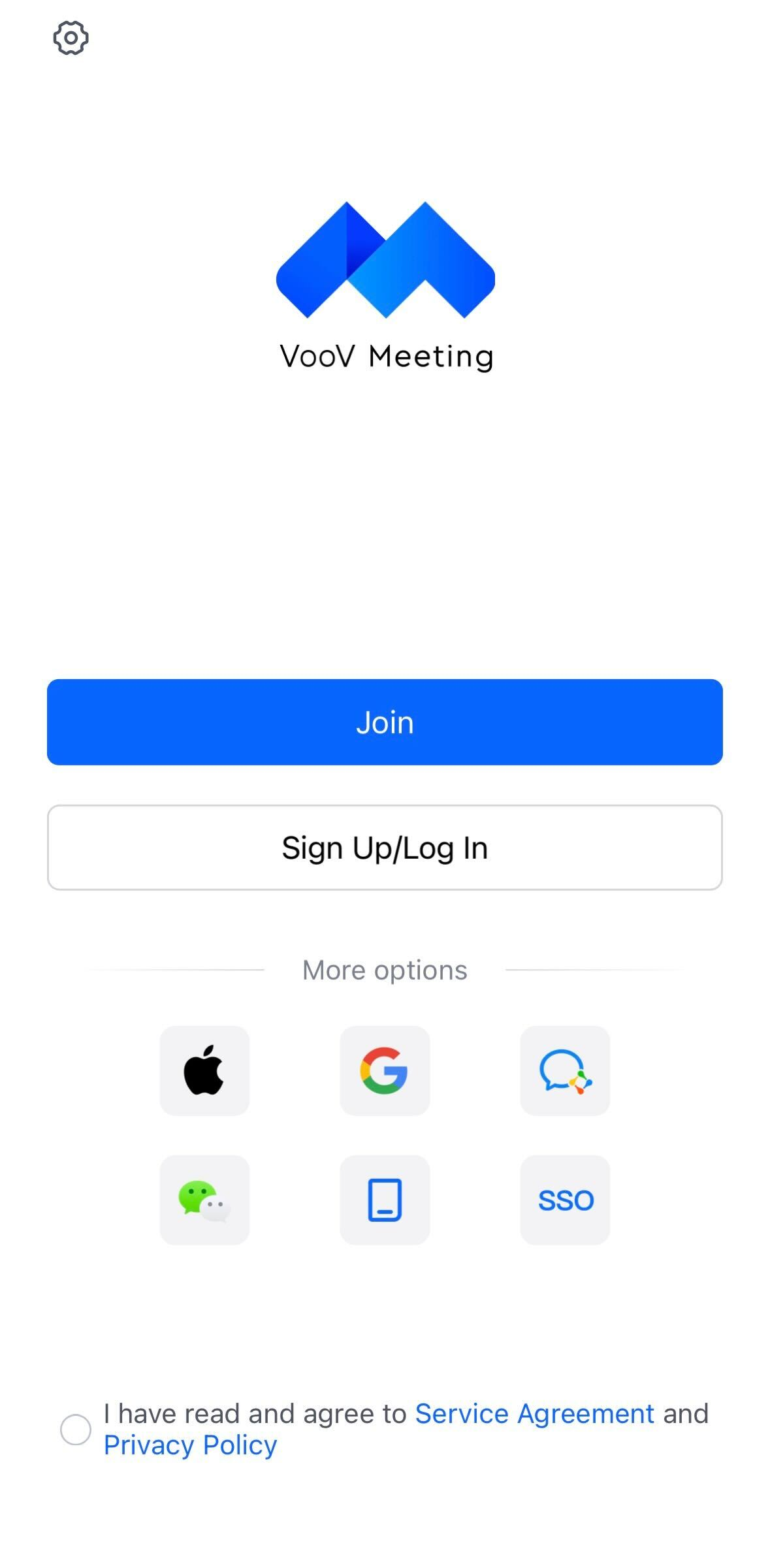
1. Launch the app and tap "Sign Up/Log In."
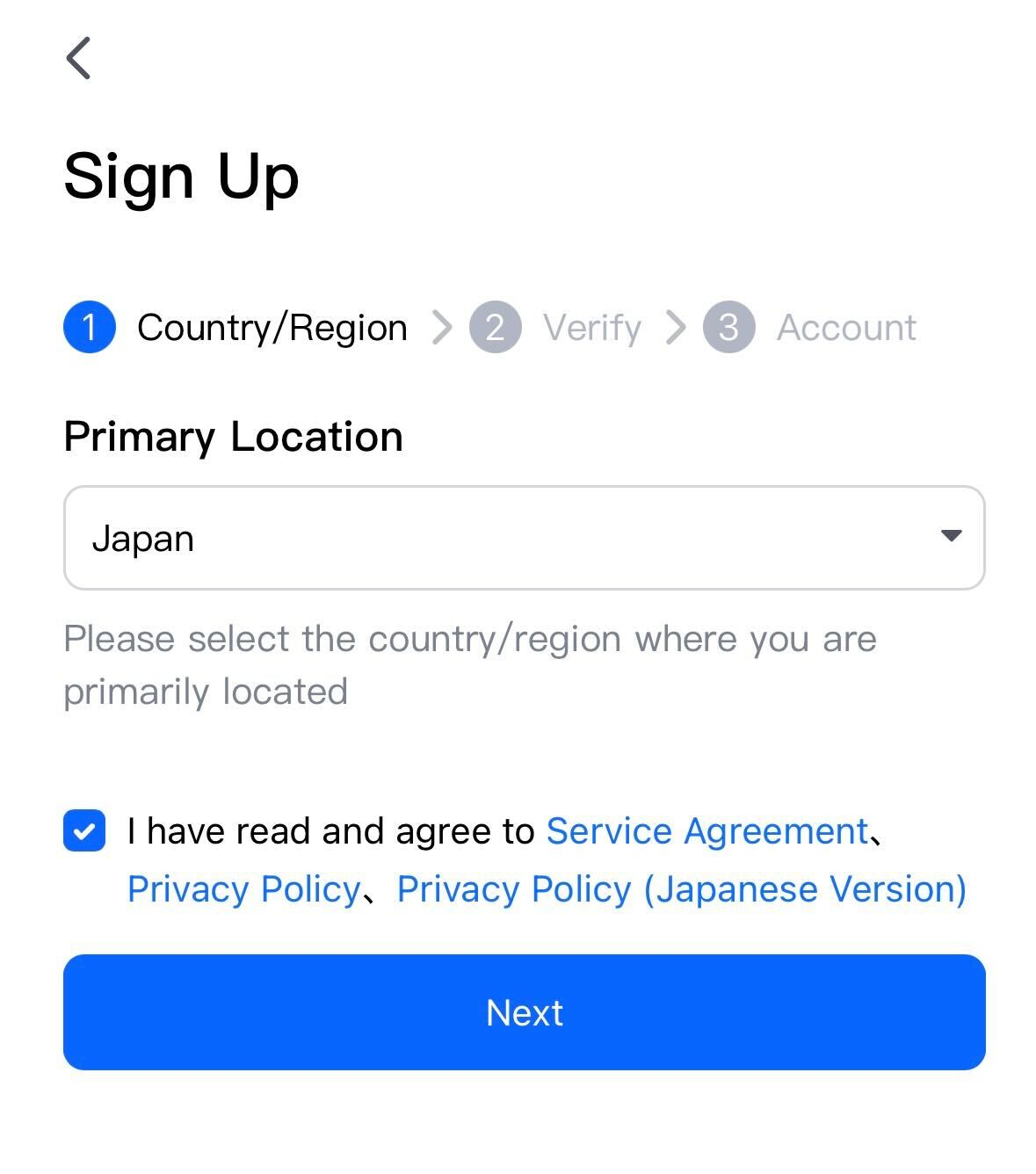
2. Go to "Sign Up," select "Japan" for Country/Region, check the box to agree to the terms, and tap "Next."
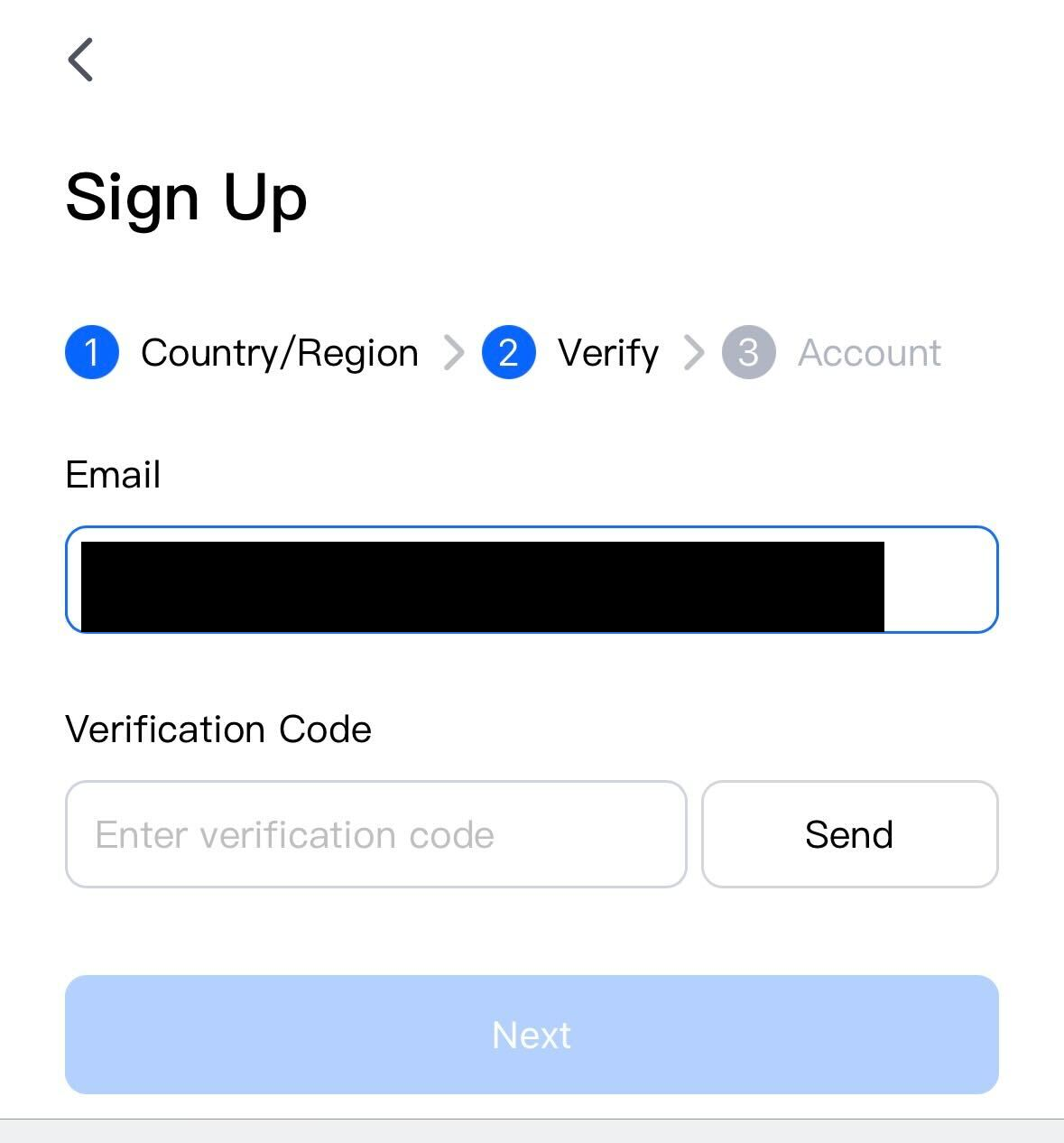
3. Enter your email address and tap "Send"; a verification code will be sent to that email. Enter the code you receive in the "Verification Code" field and tap "Next."
(What you'll receive by email is not a password but a 6-digit verification code. If it doesn't arrive after a few minutes, please also check your spam folder.)
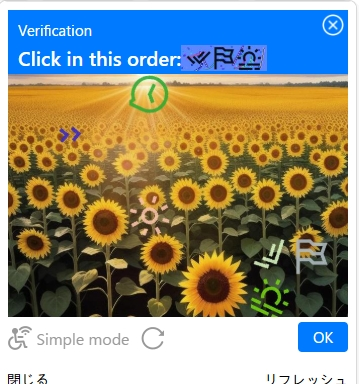
1. In the blue bar, you'll see the text "Click in this order:" along with three small icons.
2. The same icons are hidden in the photo below. Following the order shown next to "Click in this order:" on the right, tap the matching icon in the photo one at a time. Each tap will be numbered ①②③.
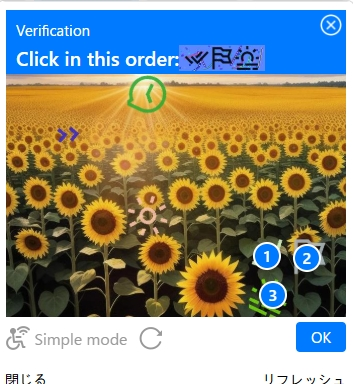
3. Once you've tapped all three, press the blue "OK" button at the bottom right.
4. Once successful, the image will disappear and a 6-digit number (verification code) will be emailed to you.
* If you can't find the icon, tap "Refresh" at the bottom right to change to a different image. You can try again as many times as you like.
* In rare cases, a different type may appear asking you to "slide the piece to the right to fit it into the puzzle." If so, slide it until it lines up exactly with the missing piece, then release.
* If you wait a few minutes and still don't receive the email, please check your spam folder.
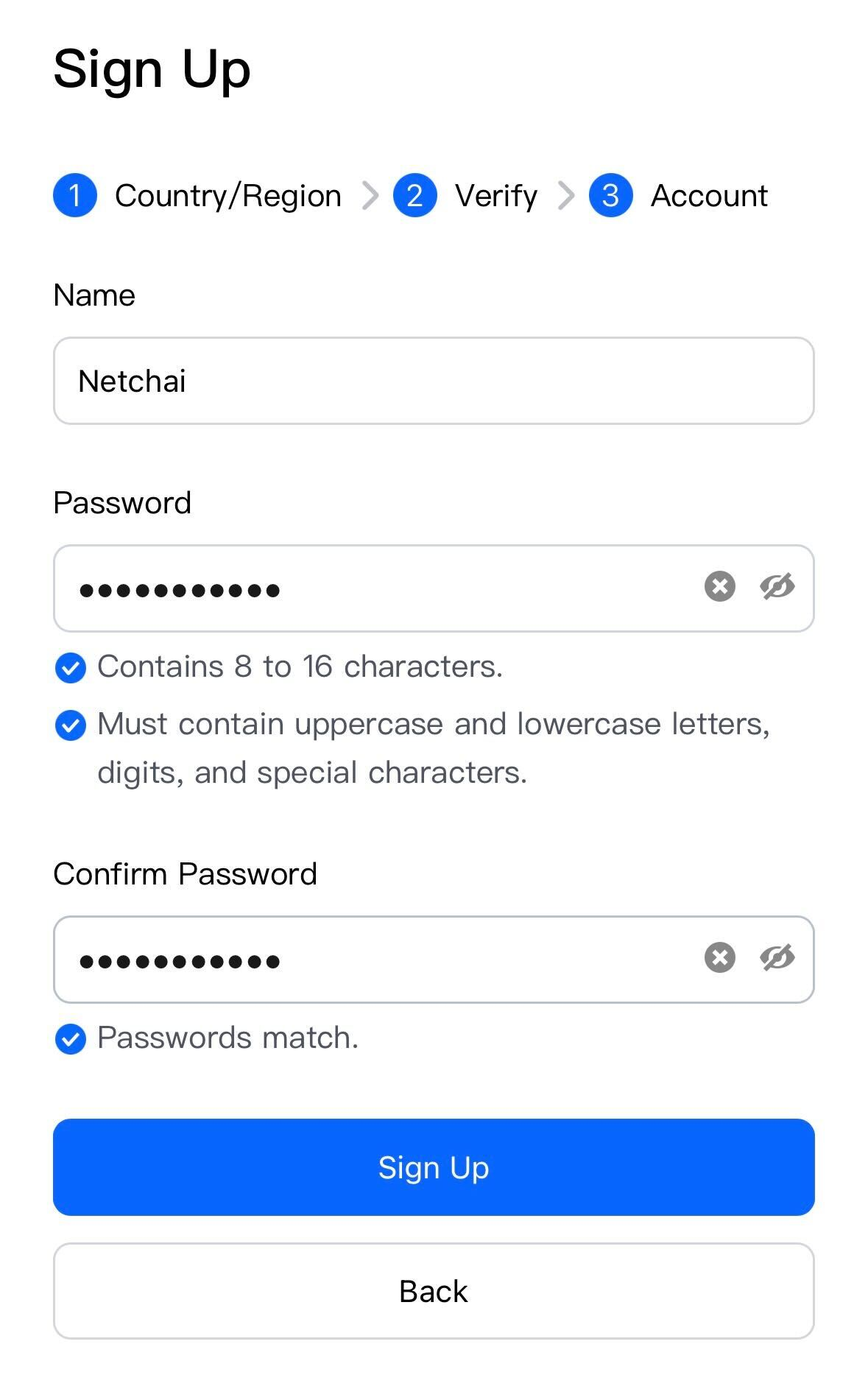
4. Set a display name (Name) and password (Password), then tap "Sign Up." The password must be 8–16 characters and include uppercase letters, lowercase letters, numbers, and symbols.
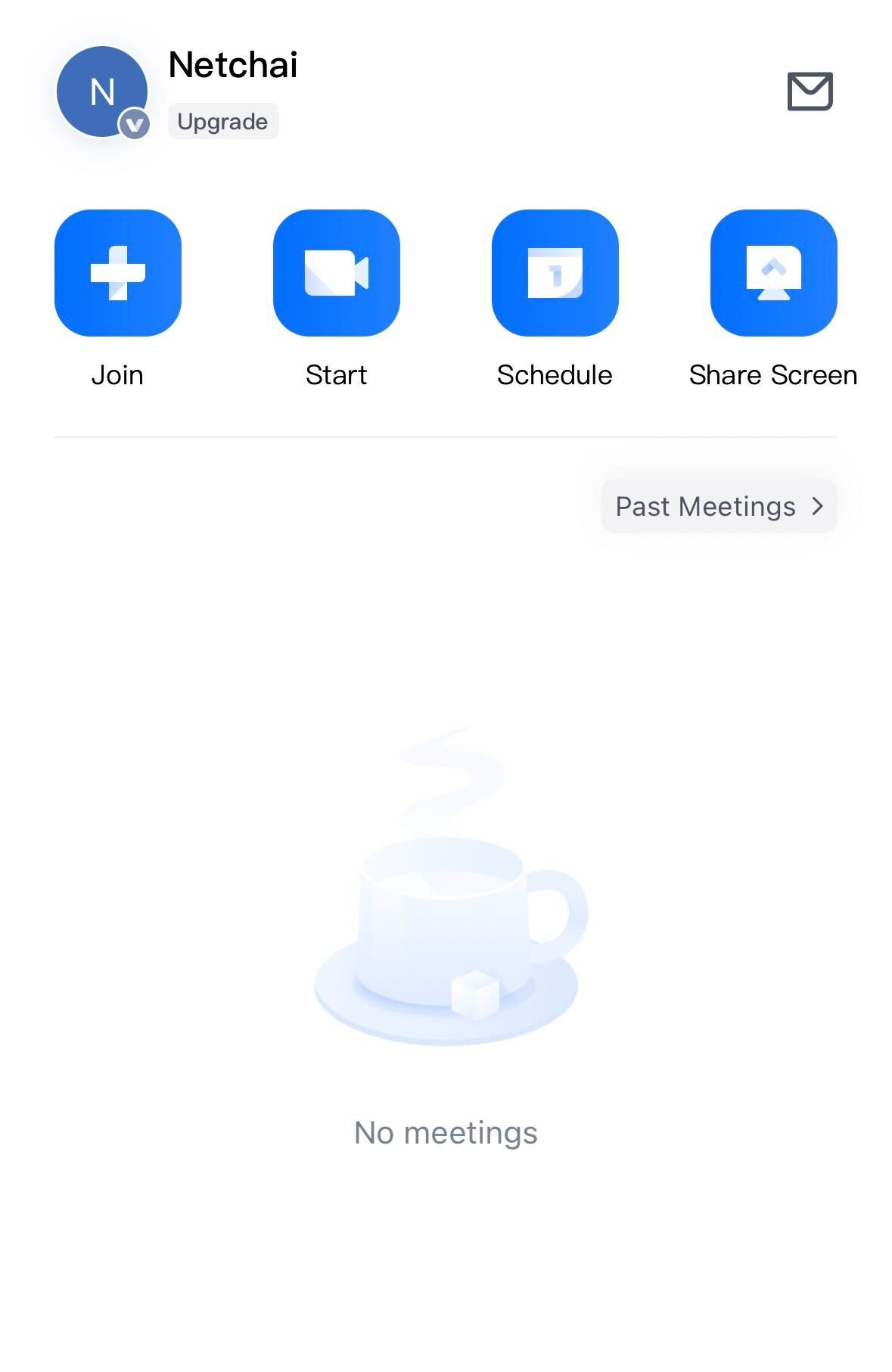
5. Once you see the home screen below, your account registration is complete.
* We recommend setting the name (Name) shown in VooV Meeting to your NetChai username (the name you use to log in), so your tutor can easily tell who you are. You don't need to register your real name.
How to Set the Display Language to Japanese
VooV Meeting supports Japanese display, and it will normally display automatically in Japanese to match your computer's or smartphone's language settings.
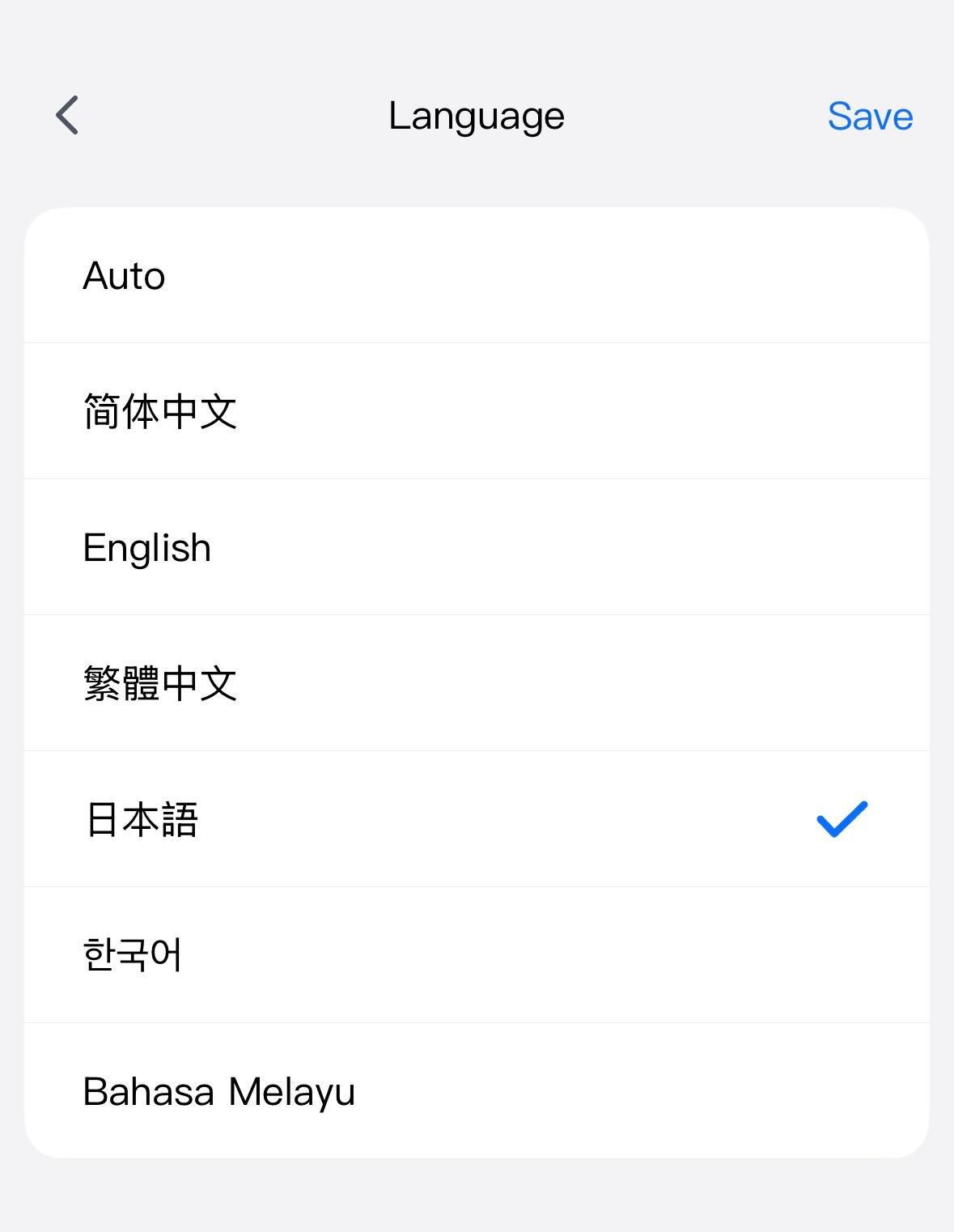
If the app is displayed in English or Chinese, go to Settings (gear icon) → "General" → "Language" and select "Japanese" (日本語). On smartphones, restart VooV Meeting once after selecting it to switch the display to Japanese.
Once you've finished installing the app and registering your account, please check how to take a lesson.
How to Take Lessons via VooV Meeting
