
VooV Meeting User Guide - How to adjust your microphone and speaker
How to adjust your microphone and speaker
Opening the settings screen (computer)
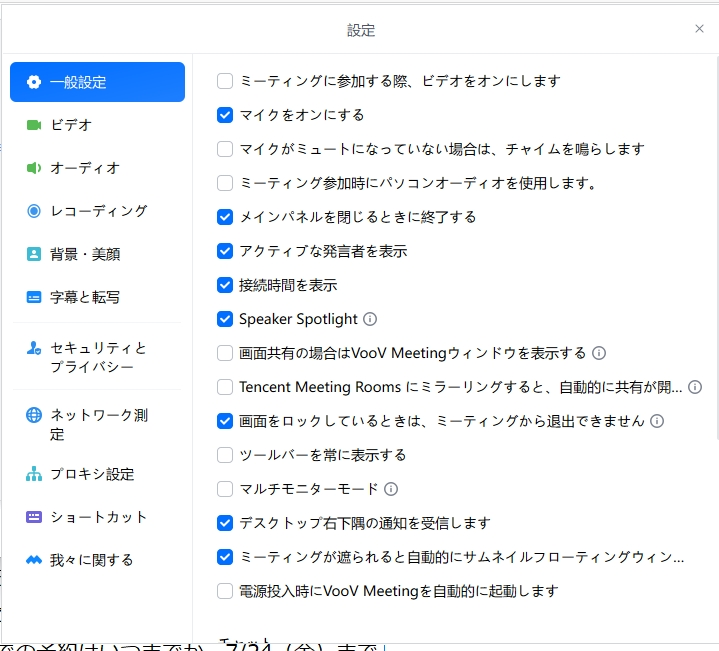
1. Start VooV Meeting and sign in, then click Settings (the gear icon) on the home screen.
2. When the settings screen opens, select "Audio" from the menu on the left. You can set up and test your speaker and microphone there.
Selecting and testing your speaker
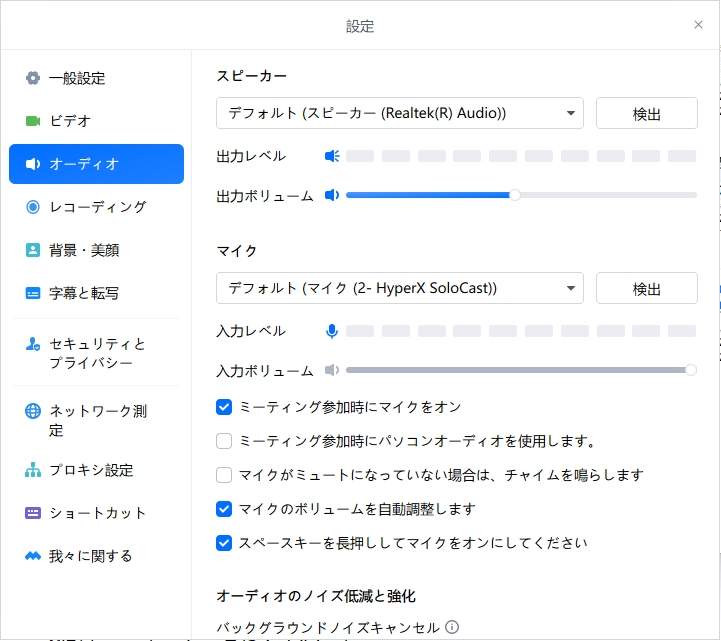
1. In the "Speaker" field, select the speaker (or earphones / headphones) you want to use.
2. Press the "Test" button and a test sound will play. If you can hear it, everything is fine. If you cannot, select a different device and try again.
3. If the sound is too quiet or too loud, adjust it with the "Output volume" slider.
Selecting and testing your microphone
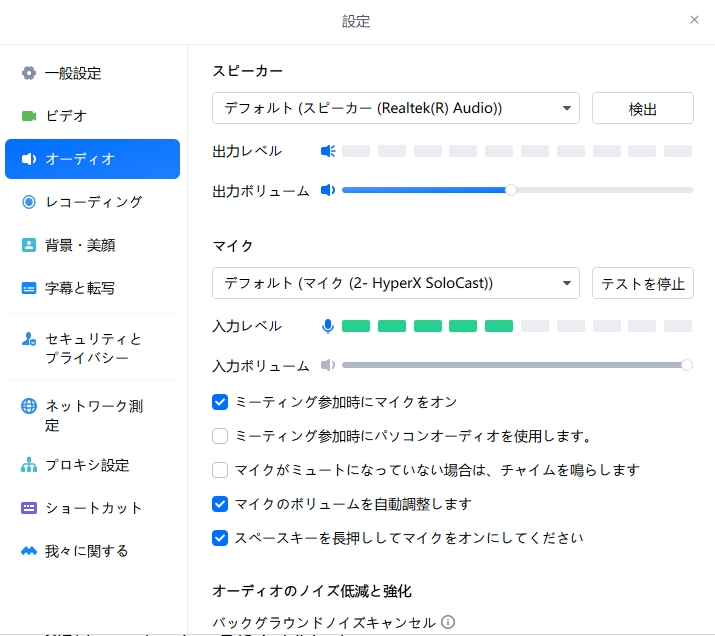
1. In the "Microphone" field, select the microphone you want to use.
2. Press the "Test" button and speak into your microphone; the "Input level" will react in green. If it reacts, everything is fine. Once you have checked, press "Stop testing". If there is no reaction, select a different device and try again.
3. If people tell you your voice is too quiet, adjust it with "Input volume". (If "Automatically adjust microphone volume" is ticked, it is adjusted automatically.)
Adjusting during a lesson
1. Use the microphone icon at the bottom left of the screen to switch mute on and off. If your tutor cannot hear you, first check that you are not muted.
2. Press the arrow (^) next to the microphone icon to switch your microphone or speaker, or open the audio settings, even during a lesson.
Points to note when taking lessons on a smartphone
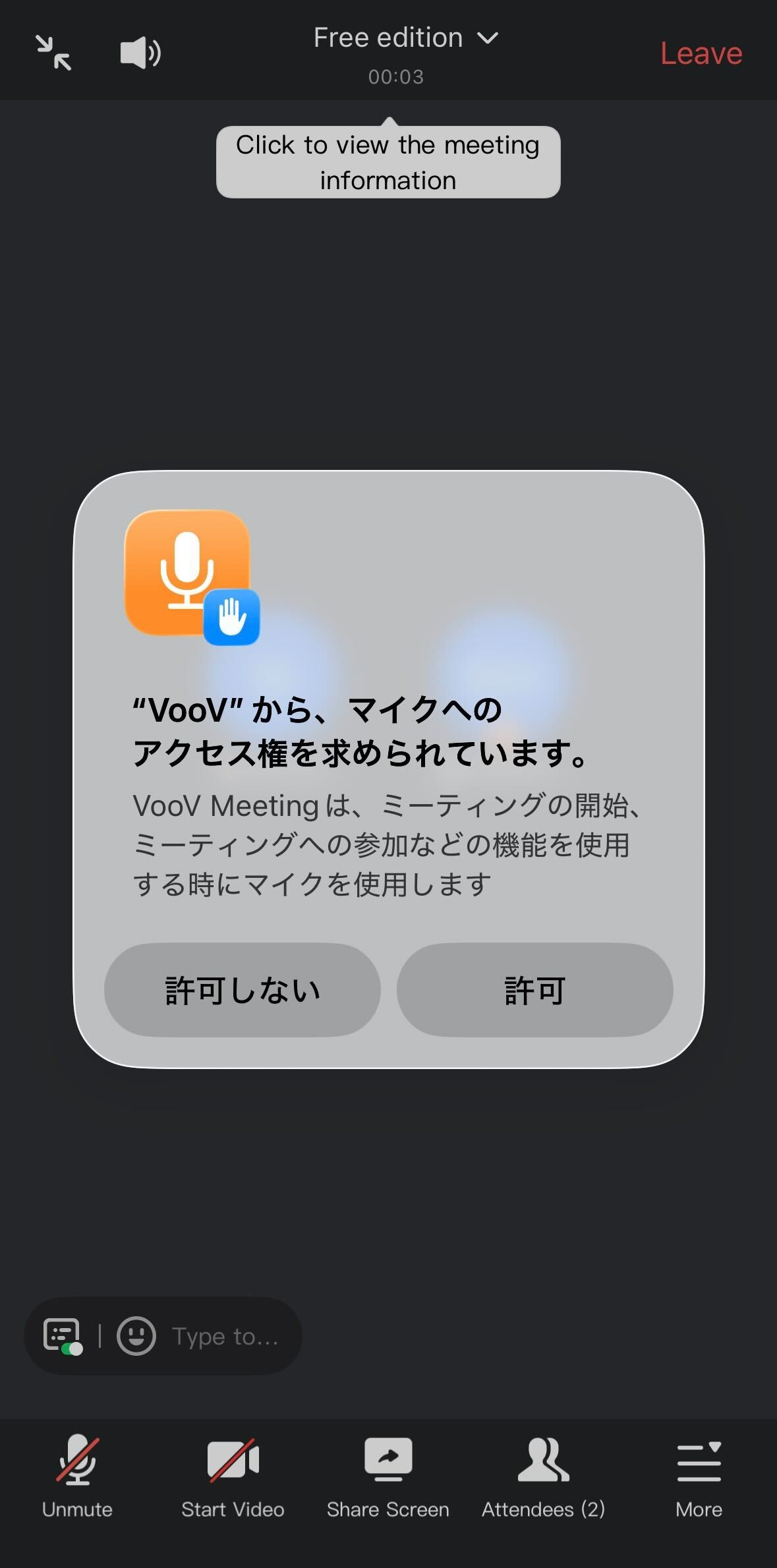
1. When you join a lesson on a smartphone, VooV Meeting connects to the audio automatically. The first time you use it, a message appears saying that "VooV" would like to access your microphone. Be sure to choose "Allow". If you choose "Don't Allow", your tutor will not be able to hear you.
2. Use the microphone (mute) icon at the bottom of the screen to switch mute on and off. If your tutor cannot hear you, first check that you are not muted.
Settings on your computer or smartphone itself
Even if you have selected the correct device inside VooV Meeting, it will not work if the microphone or camera is blocked in the settings of your computer or smartphone itself. If the input level does not react at all when you press "Test", please check the following.
1. Open "Start" > "Settings" > "Privacy & security" > "App permissions" > "Microphone".
2. Check that "Microphone access" is on.
3. Check that "Let apps access your microphone" is on.
4. Check that "Let desktop apps access your microphone" is on. VooV Meeting is included in this group.
5. Do the same for the camera: go to "Settings" > "Privacy & security" > "Camera" and turn on "Camera access" and "Let apps access your camera".
1. Open "Start" > "Settings" > "Privacy" > "Microphone".
2. Check that "Microphone access for this device" is on.
3. Check that "Allow apps to access your microphone" is on.
4. Check that "Allow desktop apps to access your microphone" is on.
5. Do the same for the camera: turn it on under "Settings" > "Privacy" > "Camera".
1. Choose "System Settings" from the Apple menu.
2. Select "Privacy & Security" in the sidebar.
3. Select "Microphone" and turn on VooV Meeting (Tencent Meeting).
4. Turn on "Camera" in the same way.
1. Open "Settings" > "Privacy & Security".
2. Tap "Microphone" and turn on VooV Meeting.
3. Turn on "Camera" in the same way.
* A green dot appears at the top of the screen while the camera is in use, and an orange dot while only the microphone is in use. If neither appears during your lesson, your camera and microphone are not running.
1. On your device, go to "Settings" > "Apps" and select VooV Meeting.
2. Open "Permissions" and allow "Microphone" and "Camera".
If you can't hear anything, or your voice isn't getting through
Please check the following points in order.
1. Check whether you are muted (look at the microphone icon at the bottom of the screen).
2. Check whether the volume on your computer or smartphone is too low or muted.
3. Check whether the correct speaker and microphone are selected in the audio settings (if you use earphones, check that the earphones are selected).
4. If you use Bluetooth earphones, check that they are properly connected.
5. Check whether another app (Zoom, Teams and so on) is still using the microphone. Close the app that is running and try again.
6. If it still does not work, close VooV Meeting and open it again, or restart your computer or smartphone.
7. Check that VooV Meeting is allowed to use your microphone and camera in the settings of your computer or smartphone itself.
See the settings on your computer or smartphone here
8. If your video does not appear, also check that the camera's lens cover (shutter) is not closed and that the video icon at the bottom of the screen is not turned off. On Windows, only one app can use the camera at a time, so close any other call apps and then open VooV Meeting again.
If the problem is not resolved, please contact the office using the message function in "Reservations & Recent History".
