
Teams User Guide - How to log in
How to log in
Logging In (Windows)
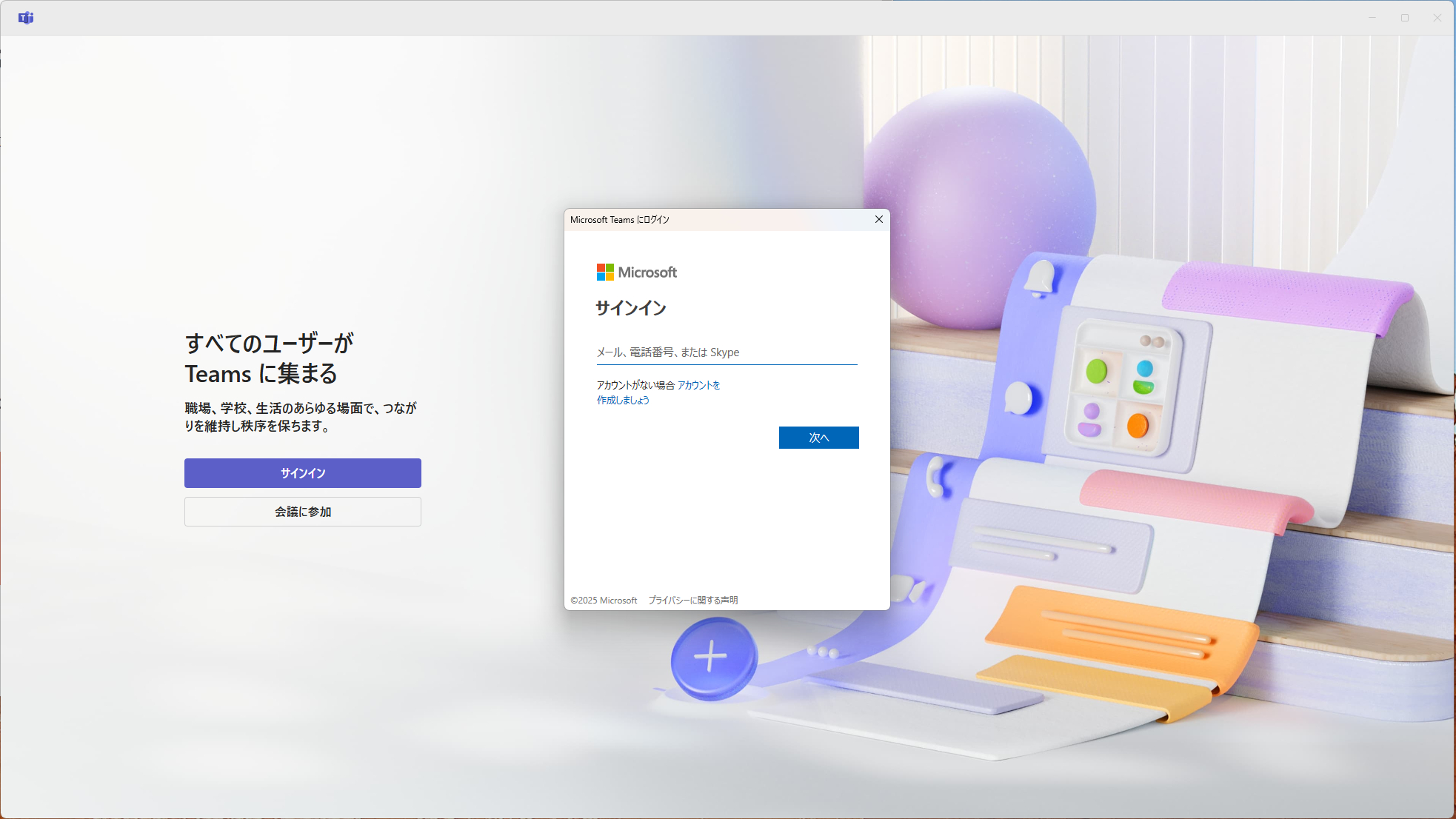
Open Teams and sign in with your Microsoft account or Skype name.
Not sure which account to use? See below.
There are 2 types of accounts you can use to log in to Teams.
1. Log in with a Microsoft account
2. Log in with a Skype name
1. Log in with a Microsoft account
A Microsoft account lets you sign in to Microsoft services including Windows, Office, and Skype.
Most accounts use an address like ○○○@outlook.com or ○○○@outlook.jp, but any email you registered with Microsoft (e.g. ○○○@yahoo.co.jp) also works.
Most Skype users logged in with a Microsoft account — use the same account for Teams.
2. Log in with a Skype name
Microsoft acquired Skype in 2011. If you created your Skype account before then, you can log in to Teams with your Skype account instead.
* Note: if you log in with a Skype name, tutors cannot find you by searching for it. You will need to create and register a Microsoft account after logging in.
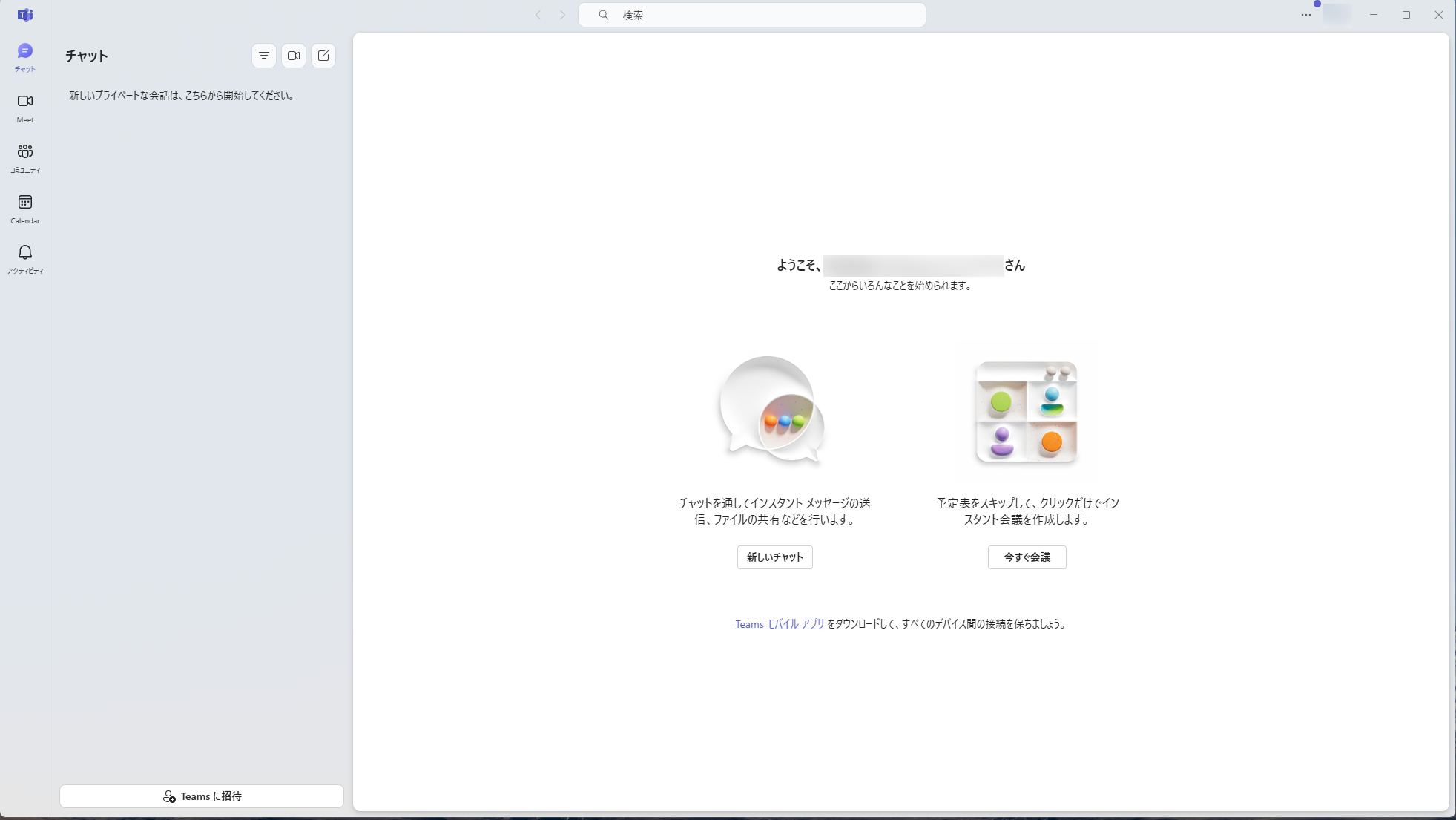
Once logged in, proceed to Step 3: register your Microsoft account on NetChai.
Step 3: Verify your Microsoft account and register it on NetChai
Logging In (iOS)
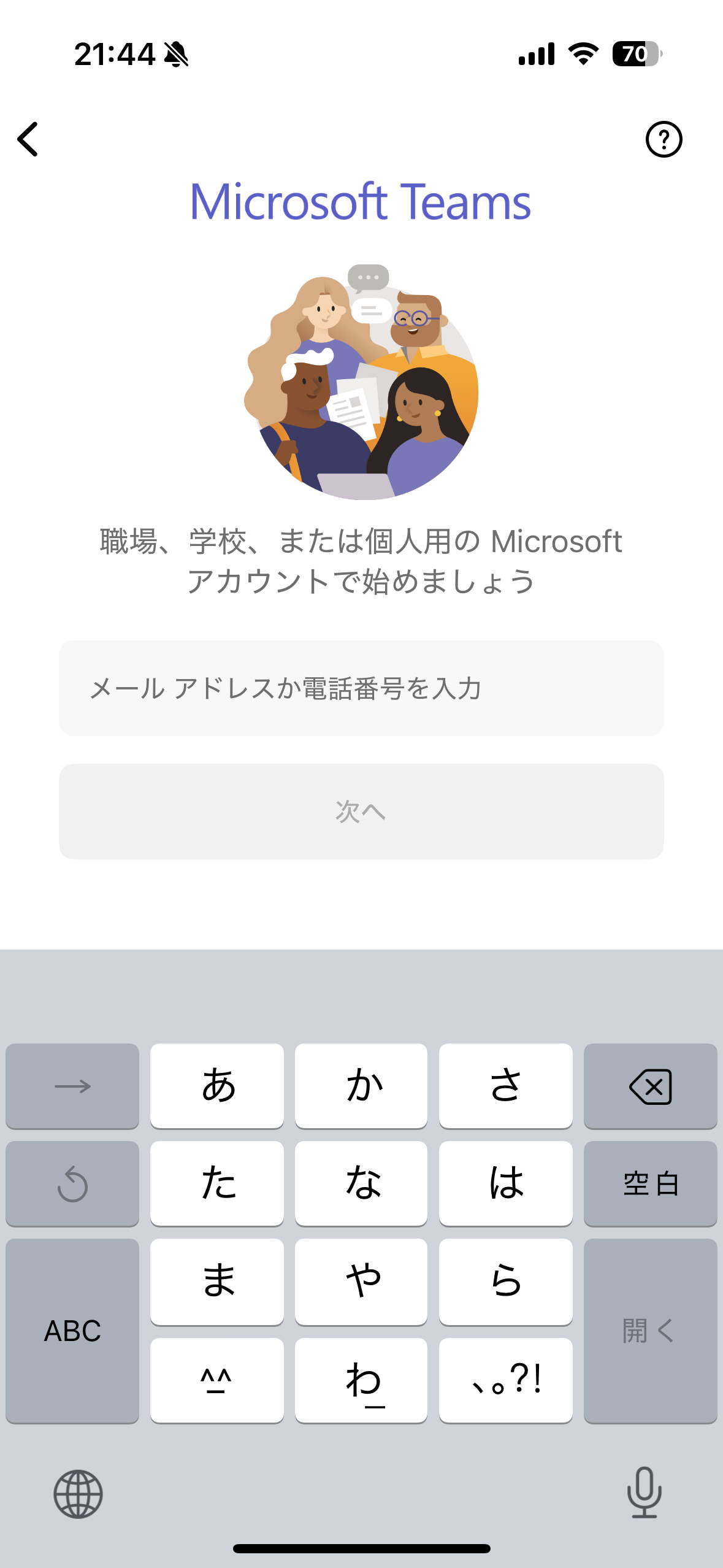
Open Teams and log in with your Microsoft account or Skype name.
Not sure which account to use? See below.
There are 2 types of accounts you can use to log in to Teams.
1. Log in with a Microsoft account
2. Log in with a Skype name
1. Log in with a Microsoft account
A Microsoft account lets you sign in to Microsoft services including Windows, Office, and Skype.
Most accounts use an address like ○○○@outlook.com or ○○○@outlook.jp, but any email you registered with Microsoft (e.g. ○○○@yahoo.co.jp) also works.
Most Skype users logged in with a Microsoft account — use the same account for Teams.
2. Log in with a Skype name
Microsoft acquired Skype in 2011. If you created your Skype account before then, you can log in to Teams with your Skype account instead.
* Note: if you log in with a Skype name, tutors cannot find you by searching for it. You will need to create and register a Microsoft account after logging in.
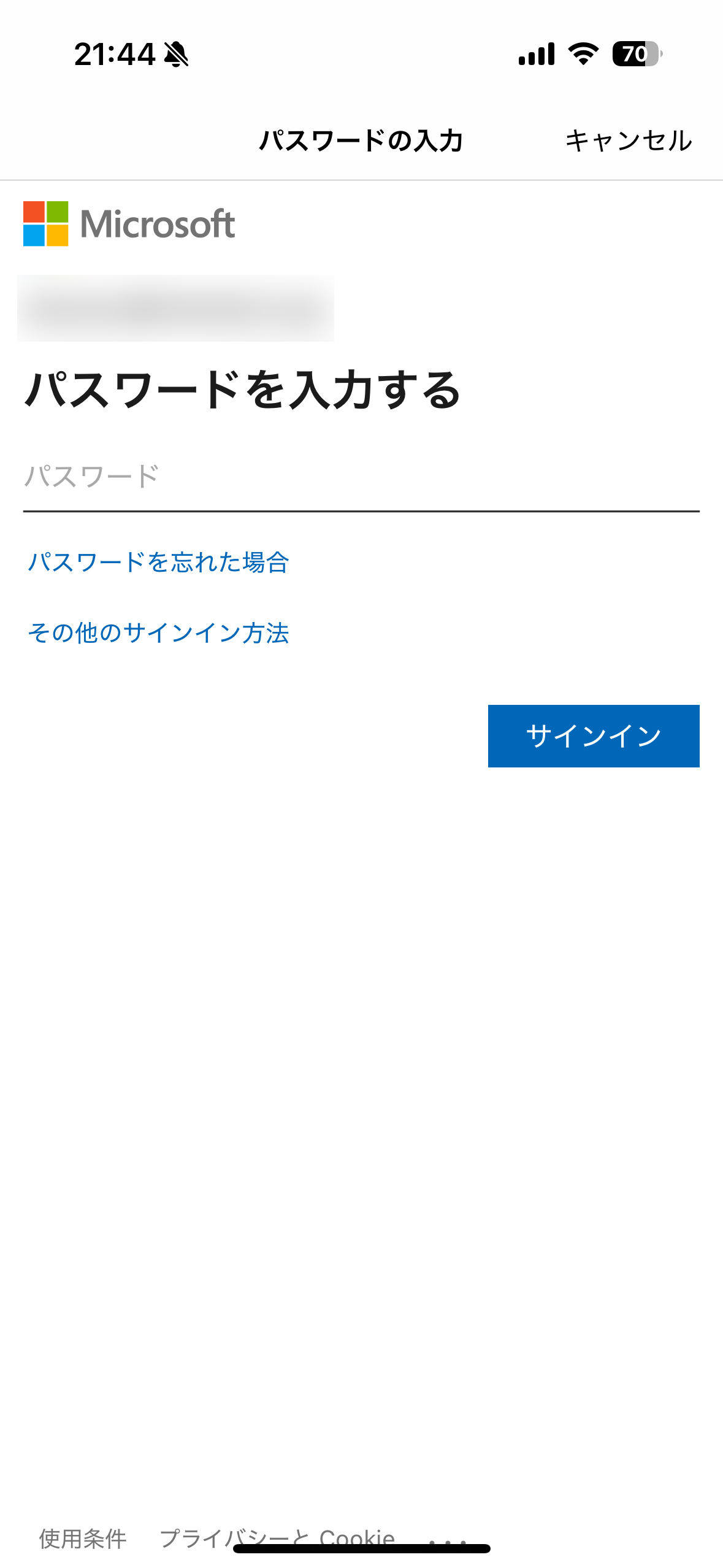
Once logged in, proceed to Step 3: register your Microsoft account on NetChai.
Step 3: Verify your Microsoft account and register it on NetChai
